Quick answer: The Twitter header size is 1500 x 500 px, or a 3:1 ratio.
Your X profile header, more commonly searched as twitter header size, is the banner image that stretches across the top of your profile.
Your header is the first thing someone sees when they come to your X profile before they read your bio, before they scroll your tweets, before they decide whether to hit ‘Follow’. A tweet can be poorly written, your Twitter bio can be confusing, andyour photos can be forgettable, but if your header is wrong, that’s a strike against you. It takes only a second to look at your header, and people decide whether to stay on your profile based on how it looks.
A well-designed X header gives visitors a quick idea of who you are and what your brand is about. This guide will give you the current Twitter header size in pixels, the recommended safe area for your header, and an overview of how to design an effective Twitter header that will look good on both mobile and desktop, based on the research we did while compiling this guide.
Let’s get into the technical details of Twitter header size.
X Header Dimensions & Specifications
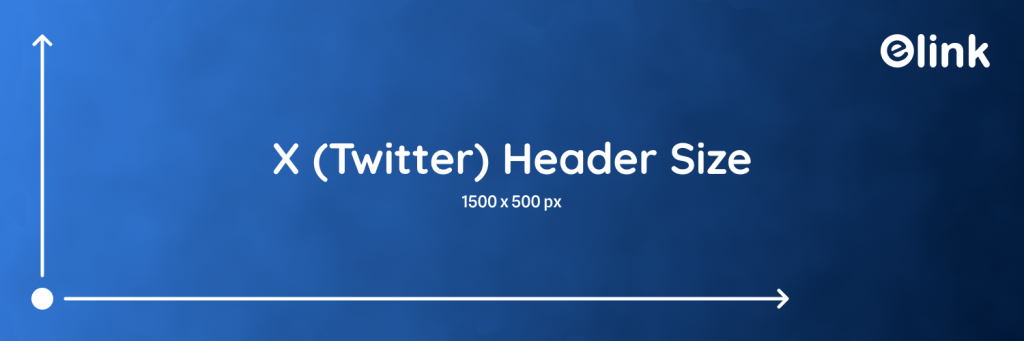
If you are looking for the exact header for twitter size, the current recommendation is 1500 x 500 pixels at a 3:1 aspect ratio. Getting the pixel count right is the first step, but file format and resolution matter just as much for a crisp, professional-looking result.
Here’s the current spec sheet, cross-checked against X’s official Help Centre guide on customizing your profile:
| Spec | Detail |
| Recommended size | 1500 x 500 pixels |
| Aspect ratio | 3:1 |
| High-resolution option | 3000 x 1000 pixels (not an official X spec, a widely used community recommendation for sharper display on high-DPI screens) |
| File formats | JPG, PNG, or GIF |
| Typical file size limit | X doesn’t publish an exact number for headers; most guidance suggests keeping it under 2 to 5 MB for best quality and fast loading |
| Animated GIFs | GIFs upload fine, but they won’t animate |
In addition, once you have your twitter header banner size sorted, remember your profile picture should be set to 400 x 400 pixels, as it will appear as a circular image on the account’s page. It will overlap with the header, which will be discussed shortly.
To clarify, it is better to use larger images at their native resolution (1500 x 500 for standard and 3000 x 1000 for high resolution) instead of smaller files that get scaled up to fill 1500 x 500, as these may appear distorted and lower in quality when displayed at their maximum size.
Getting the header size for twitter right is only half the job, though. The other half is knowing which parts of that 1500 x 500 canvas actually stay visible once your profile picture and the app’s interface land on top of it.
X Header Safe Zone Explained
The safe zone is the central part of the header that’s most likely to stay visible on every device. It’s the one area you really need to remember while designing; nearly every placement rule in this guide comes back to it, and most header mistakes happen when it’s ignored.
Two things determine what actually stays visible in your header: your circular profile picture, which sits on top of it, and how much your device crops from the edges.

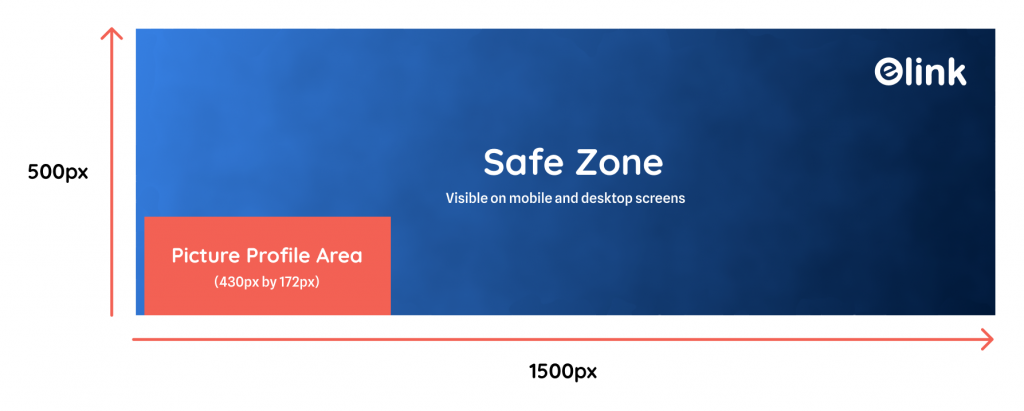
Your Profile Picture Overlaps the Bottom-Left of X Header
Your circular profile photo sits on top of your header, overlapping the bottom-left corner. Avoid placing your logo, a face, or important text there. It’s likely to be partially hidden on most screens.
🎓 Expert Tip: Neal Schaffer, a social media marketing expert and professor of digital marketing at Rutgers Business School and UCLA Extension, noted that profile picture overlap is the leading cause of failure for well-crafted headers. He advises removing any graphics from the lower-left area since your profile picture will sit directly on top of that spot and hide whatever’s underneath. (source). His advice: design around the overlap first, then treat everything else as decoration.
Mobile Devices Crop the Top and Bottom of Header
According to Adobe Express’s official X sizing guide, mobile devices may crop roughly 60 pixels off the top and bottom of your header image, though the exact amount can vary by device and app version. Treat anything placed right at the very top or bottom edge as at risk of being cut off on some phones.
The Practical Safe Zone of Header Image
Applying both rules would place the majority of the key graphic (logo, slogan, or visual) in the center of the canvas, while maintaining distance from the four sides and the lower-left corner. This central region has the best chance to appear in all viewing environments.
After establishing the proper header, take a step back and compare it to the other images that the profile will use.
X Header Size vs Other X Image Sizes
Your header isn’t the only size header twitter users need to know about. Mixing it up with your profile picture or post image size is a common mistake that leads to blurry uploads, especially when a photo gets recycled straight from a different platform.
Here’s how the main X image sizes compare, as per X’s own Help Centre
| Image type | Recommended size | Aspect ratio |
| Header / banner | 1500 x 500 px | 3:1 |
| Profile picture | 400 x 400 px | 1:1 (square, shown as a circle) |
| In-post image | 1200 x 675 px | 16:9 |
| X Card image | 1200 x 628 px | 1.91:1 (widely used industry convention; X’s own stated ratio is closer to 2:1) |
As can be seen, all aspect ratios are different. This means that an image that has been cropped to fit a certain image size (e.g., 16:9) would not look good when used for another purpose (e.g., a 3:1 header/banner). It is better to make different images for different image sizes, rather than trying to modify the same image for multiple purposes.
Now that the differences between image sizes have been discussed, it is time to address the most important question of all: how does one actually create a header?
How to Create the Perfect X Header
You don’t need professional design skills to build a clean, on-brand X header. You just need the right tool and the safe zone rules from the earlier section in mind while you design, since most design mistakes happen before the file is ever uploaded.
Here are the two most common ways to build one:
Option 1: Work With a Designer in Photoshop
If you have a designer on your team, this is the most flexible route. Ask them to build the header at 1500 x 500 pixels (or 3000 x 1000 for extra sharpness) and design with the safe zone in mind from the start.
Option 2: Use a Free Design Tool
If you don’t have design software, a browser-based tool is faster and just as effective. These three are worth trying:
- Canva: Offers pre-sized X header templates, which take the guesswork out of hitting 1500 x 500.
- Snappa: Has an X header format built in, sized to spec from the start.
- Adobe Express: Provides free X header templates and publishes its own sizing and safe-zone guidance, which this article draws on.
💡 When your header is live, a tool like elink.io can help you build a matching link-in-bio page, so visitors have somewhere to go after they check out your profile →
Once your header is designed, saving it correctly matters just as much as building it right. A great design uploaded the wrong way still ends up blurry, no matter how much time went into the layout.
How to Upload or Change Your X Header
Uploading your header only takes a minute once your image is sized correctly. Here’s the process on both desktop and mobile, and the steps are close enough that switching between them mid-edit won’t trip you up.
On desktop:
- Log into X and navigate to your profile
- Click the camera icon on whichever header image you’d like to change.
- Upload your 1500 x 500 image by clicking “Upload Photo.”
- Drag your uploaded image to move it around, as necessary, then click Apply.
On the mobile app:
- Navigate to your profile and click/tap Edit Profile.
- Tap the header photo area.
- Select a photo from your camera roll (make sure to use one that’s been sized to 1500 x 500, if possible).
- Crop the image, as needed, then tap Save.
Quick reminder before you hit save: double-check your positioning against the safe zone from earlier, since your header can display slightly differently depending on the screen.
With your header live, it helps to see what a strong one actually looks like in practice.
Got your header ready? Bring your important links together in your Twitter bio to give profile visitors one place to find them→
X Header Design Ideas
Staring at a blank canvas is the hardest part of designing a header. A few proven layout approaches make the process much faster. These are concepts to adapt, not exact templates, so treat them as a starting brief rather than a copy-paste example.
Here are five design tips for X headers that consistently work well within the safe zone:
- Solid brand-color block: A simple block of color with a logo in the center will look great almost anywhere. This solution is super easy to execute and won’t fail you.
- Product or team photo: A wide, centered photo of your product or team, with generous empty space on both sides.
- Quote or tagline banner: Your mission statement or tagline in large, centered text on a simple background.
- Event or launch countdown: This whole area can be used to promote an upcoming event or product launch or simply count down to a specific date.
- Minimalist pattern: A subtle brand-colored pattern or texture that lets your profile picture and bio do the talking.
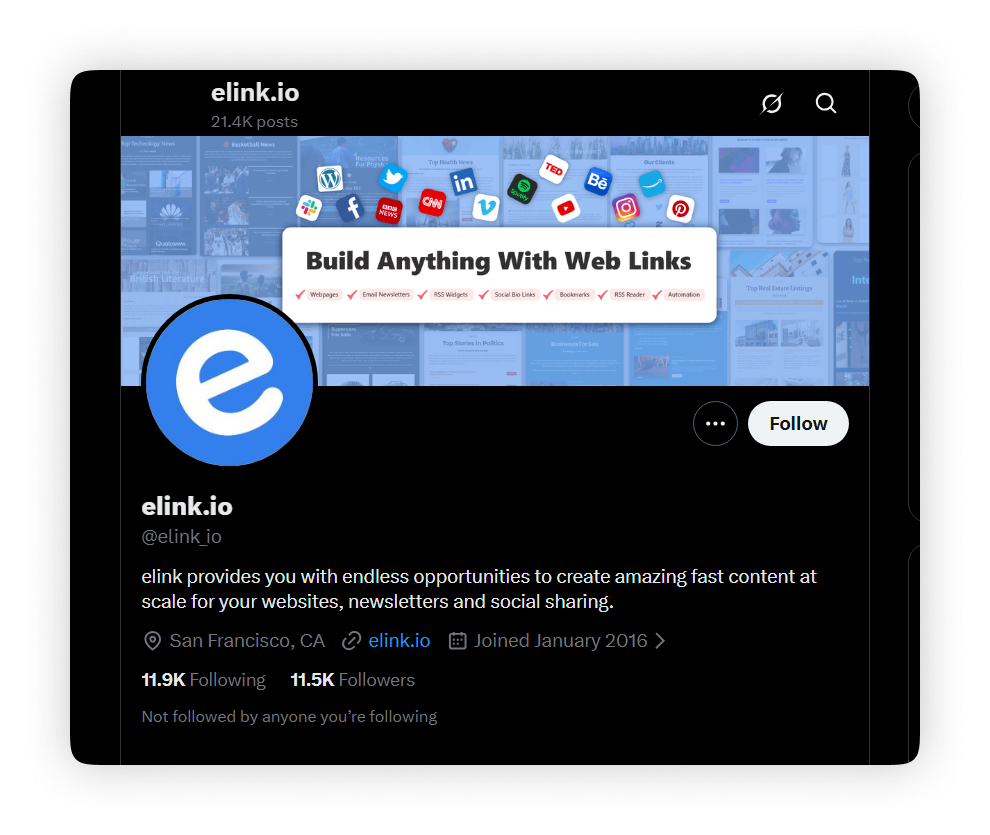
Whichever approach you pick, run it past the safe zone rules before you publish.
Your header grabs attention, but your posts keep people around. Learn how to turn ordinary posts into highly shareable content →
Common X Header Mistakes to Avoid
Most bad headers aren’t a design problem. They’re a checklist problem. Run through this before you upload, since almost every complaint about a “broken” header traces back to one of these six items.
- Image is at least 1500 x 500 pixels (not stretched from a smaller image)
- No logo or text in the lower-left corner
- No text along the very top or bottom edge
- Previewed on a phone (not just your computer monitor)
- Not stolen from another platform’s cover photo size
- Colors/styles match your profile picture and branding
Six checks, and your header is ready to shine across all the devices your visitors use. Here’s a slightly longer version of that same check if you want to be thorough.
Before You Upload: The 30-Second X Header Check
Run this through your final file before upload:
- Zoom out to thumbnail size. If your text/logo is still visible when it’s reduced to thumbnail size, it’ll be okay when it’s small on someone’s feed.
- Cover the bottom-left corner with a coin or your finger on screen. Whatever’s underneath is what your profile picture will hide.
- Check the top and bottom 60 pixels. If anything critical sits there, nudge it toward the center.
- Open your profile on your phone, not just your desktop preview. This is the single most common way people get surprised by a cropped header.
Naturally, that leads to the questions people ask most often about X headers.
💡 Updating your X profile is a good time to check that your social media handles are consistent across platforms, making it easier for people to recognize and find you. →
Conclusion
Build your header at 1500 x 500 pixels, take the safe zone into account, and preview it all before publishing. This is the entire point of this guide, and it applies whether you are doing it for the first time as an individual or the fiftieth time as a company manager.
Most of the issues people have with X headers come from a misunderstanding about size and placement: a logo accidentally placed in the lower-left corner, text that runs right to the edge, or an image that wasn’t sized at 1500 x 500 pixels to begin with. If you understand where the safe zone is and what it is for, you will avoid these classic mistakes.
Save your finished design as a template so refreshing your header for a new campaign, season, or launch takes minutes, not hours. Ready to put your new header to work? Build a matching link-in-bio page with elink.io so visitors have somewhere to go after they check out your profile.
Frequently Asked Questions
What is the current X (Twitter) header size?
The current recommendation is 1500 x 500 pixels, a 3:1 aspect ratio. For extra sharpness on high-resolution screens, you can upload at 3000 x 1000 pixels instead.
Can I use a GIF as my X header?
No. X supports GIFs for in-feed posts, but header and profile images need to be static JPG or PNG files.
Why does my X header look blurry after uploading?
If you used an image smaller than 1500×500 pixels, X will stretch it to fit the standard size and that stretching is what causes the blur or pixelation. The best practice is to work with the highest resolution image possible. If you uploaded an image at the highest resolution and it still appears pixelated, it may be an issue with your display or browser settings.
Does my header image look different on mobile than on desktop?
Yes, it may. According to Adobe Express’s recommendations, mobile displays tend to cut approximately 60 pixels from the top and bottom of your header, so keeping crucial information in the center is best
What’s the file size limit for an X header?
As of now, the standard file size limit for images is around 2 MB, so optimizing large images before uploading is essential.
How often should I update my X header?
It depends on your brand’s aesthetic, but typically once every season is standard, though some companies update it more frequently for special events.
Relevant Reading:
Editor’s Note: This guide was reviewed and updated in August 2026. Specifications were cross-checked against X’s in-app upload requirements, Adobe Express’s official X/Twitter sizing guide, and additional 2026 sizing breakdowns from independent design and marketing sources linked throughout this article. Platform dimensions occasionally change without much notice. If your header displays differently than expected, it’s worth re-checking this page for updates before assuming your design file is the problem.