Sometimes you have news you simply can’t keep quiet about. Maybe you’re launching a new product, introducing a feature, hosting an event, or sharing an important company update. Whatever the news is, an announcement email is one of the easiest ways to tell your audience about it.
But the problem is that many announcement emails either say too much or say nothing interesting at all. Readers open them, scan a few lines, and move on. That’s why the way you write and structure the announcement email matters just as much as the news itself.
With the right approach, you can clearly share your update, grab attention, and encourage people to take the next step. In this guide, we’ll walk through the simple steps to help you create announcement emails easily.
But clueless about what announcement emails are? Don’t worry, we’ve got you covered! Let’s get started.
What is an Announcement Email?
An announcement email is basically used to announce or talk aboutnew product releases, recent updates or changes, upcoming events, and more. It is usually sent by a business to its employees, clients, potential investors, stakeholders, etc.
The announcement email informs the reader about what is going on or going to happen, why it is beneficial for the reader, and what they have to do (the call-to-action) in order to participate or engage.
Now that you know what an announcement email is, is it really necessary to send one?
Many businesses share updates on social media or their website and assume that’s enough. But the truth is, important news can easily get lost in crowded feeds. This is exactly where announcement emails make a difference.
Let’s look at why sending announcement emails is so important.
Why You Must Send Announcement Emails?
The main purpose of an announcement email is to ‘announce’ something new to your subscribers or audience. It’s a great way to keep your audience updated and informed about your new products and services, the changes you are making, new offers and deals, and more.
An announcement email also ensures that your customers are aware of how they will benefit from your product or service and how your product or service will solve their problems.
Besides this, sending out announcement emails encourages better engagement with your audience, improves social shares, and helps grow demand for your products.
Now that we’ve talked about why announcement emails matter, it’s helpful to understand that they’re not all the same. Businesses send announcement emails for many different reasons, depending on what they want to share with their audience.
Let’s take a look at some of the most common types of announcement emails you’ll come across.
Common Types of Announcement Emails
Announcement emails can serve many different purposes. You can share a promotion announcement email, retirement announcement email, new website announcement email, employee leaving announcement email, and so on. Basically, the type of email you send usually depends on the kind of news you want to share with your audience. So, here are some common types of announcement emails businesses often use.
1. Product Launch Announcement Emails
A product launch announcement email is sent when a company releases a new product to its audience and wants people to actually notice it.
Its main purpose is to introduce the product to the audience, explain what it does, and show why it could be useful to them. Instead of just sharing information, product announcement emails are designed to create curiosity and excitement around the launch.
2. New Feature Announcement Emails
When a business adds a new feature to an existing product or service, an announcement email helps make the users understand what’s new from your end and how it can benefit them.
But don’t just inform users that “something new exists,” but make people quickly understand what is changed, and how that change can help improve their experience. Because people don’t care about a feature until they understand the problem it solves. So instead of saying “We’ve added X feature,” a stronger approach is to frame your announcement email as “You can now do X without extra effort or tools.”
3. Event Announcement Emails
Event announcement emails are sent to promote upcoming events such as webinars, workshops, product demos, live sessions, conferences, or networking meetups. The main purpose of this announcement email is to inform the audience about the event and encourage them to register before the seats fill up or the event date arrives.
A well-written event announcement email should quickly tell readers what the event is about, who it is for, and why it is worth their time. All these details are quite helpful in capturing the attention of the audience instantly and, in turn, increasing the chances of registrations.
4. Company Update Emails
Company update emails are used to share important business news with customers, subscribers, or stakeholders. These updates can include major milestones, new partnerships, leadership changes, expansions, rebranding, or any other developments that impact the brand.
The purpose of these announcement emails is to keep your audience informed about the changes and maintain transparency. This helps in building trust while keeping your audience connected to your brand’s growth and journey.
Read more: Business Email: How to Write It Perfectly (Process & Tips)
5. Sale or Special Offer Announcement Emails
A sale or special offer announcement email is sent to let subscribers know about discounts, seasonal sales, or limited-time deals.
The whole idea behind such emails is to quickly catch the attention of readers and encourage them to take advantage of the special offer before it ends.
Don’t miss this: Sales Email Templates You Need to Check Out!
6. Policy or Service Update Emails
Businesses may also send announcement emails to inform users about changes in policies, pricing, terms of service, or product availability. This keeps customers informed and avoids confusion later.
Each type of announcement email has a slightly different purpose, but they all share one goal: to clearly share important news with the right audience.
Now that you’ve seen the different types of announcement emails businesses commonly send, the next step is understanding how to actually write one.
A well-written announcement email doesn’t need to be complicated, but it should clearly deliver the message and guide the reader on what to do next. Let’s go through the key steps to help you write effective email announcements. ✉️

How to Create Announcements Email
Writing an announcement email becomes much easier when you follow a clear structure. Here are the key steps that can help you create an announcement email effectively.
Step 1: Begin with a concise and specific subject line
The subject line is the first thing people see in their inbox, so it should quickly tell them what the email is about. Keep it simple, clear, and direct so readers instantly understand the announcement. A strong subject line can also increase the chances of your email being opened.
In fact, studies show that about 47% of people determine whether to open an email solely by its subject line, which shows how important it is to get it right.
Step 2: Begin With the Main Announcement
Once someone opens your email, don’t make them search for the news. Start by sharing the main announcement right away. Readers should immediately understand what the email is about within the first few lines.
You can briefly explain what’s new and why you’re sharing this update. Keeping the message clear and direct helps readers immediately understand the intent of the email and stay interested in reading the rest.
Step 3: Provide Important Details
After sharing the main announcement, the next step is to give readers the key details they need to understand it better. This could include information like what the update is about, when it will happen, how it works, or how it benefits them.
The goal is to give enough information so readers clearly understand the announcement without overwhelming them with too many details. Keep the explanation simple and focus on what matters most to your audience.
Step 4: Keep the Message Clear and Concise
Do not add too much information in your announcement emails. Because most readers just quickly scan emails rather than reading every word. That’s why it’s important to keep your message simple and to the point.
Focus on the main update and explain it in a few clear sentences. Avoid long paragraphs or unnecessary details. When the message is easy to read, people are more likely to understand the announcement and stay engaged. ✉️
Step 5: Add a Call-to-Action (CTA)
After sharing the announcement, tell readers what they should do next. This is where a call-to-action (CTA) comes in. A CTA points people toward their next step, like exploring your website or discovering a new product, registering for an event, or learning more about the announcement you just made.
Make sure your CTA is simple and clear so the reader knows what to do next; a short line like “Go check out the new feature”, “Visit our website”, or “Register for the event” will help create action from your announcement.
Step 6: End With a Professional Closing
After your announcement and call to action have been done, finish your email with a clear and professional closure. That’s your personal choice now, how you’ll end it, as you can close it with a brief message of thanks, a friendly sign-off, or an invitation for readers to get in touch if they have any questions.
Ending the email on a polite and positive note helps leave a good impression and keeps the communication feeling personal rather than abrupt.
Now, to help you put these ideas into action, here’s a simple announcement email example you can use as a reference when creating your own announcement emails.
Read more: Email Personalization: Best Practices to Boost Opens & Conversions
Announcement Email Example
Here’s an announcement email example for a new product launch to help you understand how a well-written announcement email looks in action:
Subject: Introducing Something New You’ll Love 🎉

Hi [First Name],

We’re excited to share something special with you!

Meet our newest product [Product Name]. It’s designed to make your [mention problem it solves] easier, faster, and more enjoyable.

With features like:
[Key Feature 1]
[Key Feature 2]
[Key Feature 3]

You can now [mention main benefit in simple words].

We built this keeping you in mind, and we can’t wait for you to try it.

👉 Check it out here: [Add Product Link]

Let us know what you think, we’d love to hear your feedback!

Cheers,
[Your Brand Name]
Now, if you are wondering how to create and send an announcement email that is not just text-based, then we have just the tool for you! Read on to find out!
Elink.io: The Fastest and Easiest Way to Create & Send Announcement Email Newsletters
If you’re running a business, chances are you’re busy. So when it comes to sending newsletters as a part of your announcement emails, the last thing you have is the time to create them from scratch.
Luckily, we have something that will help you create an awesome announcement email newsletter – elink.io. Elink.io is light on the budget, easy to use, and comes with all the features you need to create and share a stunning newsletter that people want to click through.
The platform has a huge collection of fully responsive newsletter templates, and we bet you would find at least one that fits your needs. Once you find a template, add links to the content you need to share, and elink will create a stunning, fully responsive newsletter for you in minutes.
Moreover, you can add your own images, text, bullet lists, numbered lists, buttons, social icons, and dividers in the header and footer of your newsletter. You can even add a search bar to your newsletters. What could be better than that?
And, the most amazing feature of elink is – content automation! Using elink’s nifty automation tool, you can automate content creation for your announcement emails.
All you have to do is pick sources and add filters in order to make your content more effective and relevant.
Now that we’ve convinced you to try elink, it’s time to tell you how you can create announcement email newsletters using this awesome tool. let’s go!
How to Create Announcement Email Newsletters Using elink.io?
Here, we’ll cover how you can create announcement email newsletters with elink.io in minutes. So, sign up to elink.io and get started.
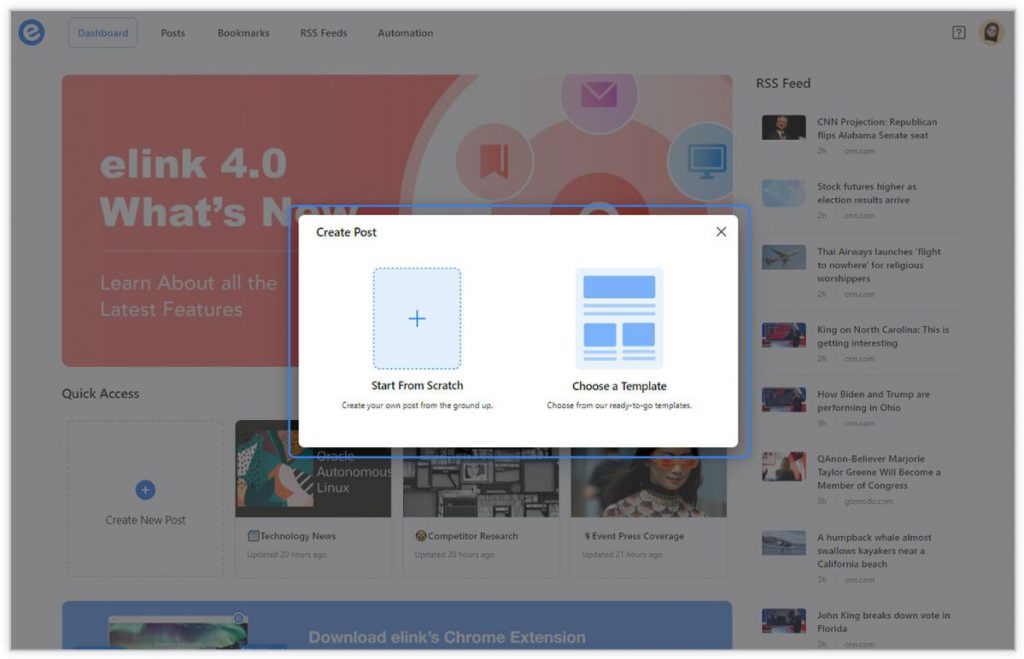
Step 1: Choose a Newsletter Template
The coolest thing about elink is that you don’t have to worry about all the tricky design rules. With elink’s stunning newsletter templates, you’re already way ahead when it comes to designing.
Now, here’s what you need to do: choose a template and customize it the way you want. We’ve quite a splendid collection to choose from, so take your time to find the one that fits your needs the best.
By the way, you can also create a newsletter from scratch. It’s totally up to you.
Step 2: Add Links to the Newsletter
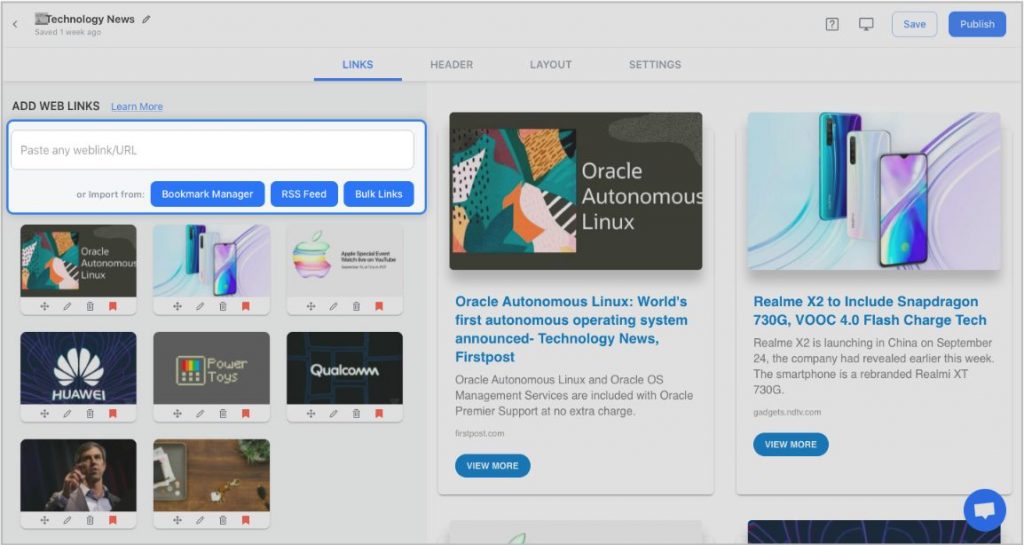
Here comes the fun part. You can add links to the content (articles, videos, products, etc.) that you want to show up in your monthly newsletter.
elink is so robust that it will automatically generate an image, a title, and a short description with each link. Of course, you can modify and customize any of this information if you want.
elink also has an RSS feed reader and a bookmark manager, so you can quickly select your preselected links directly from the RSS feeds or enter them manually.
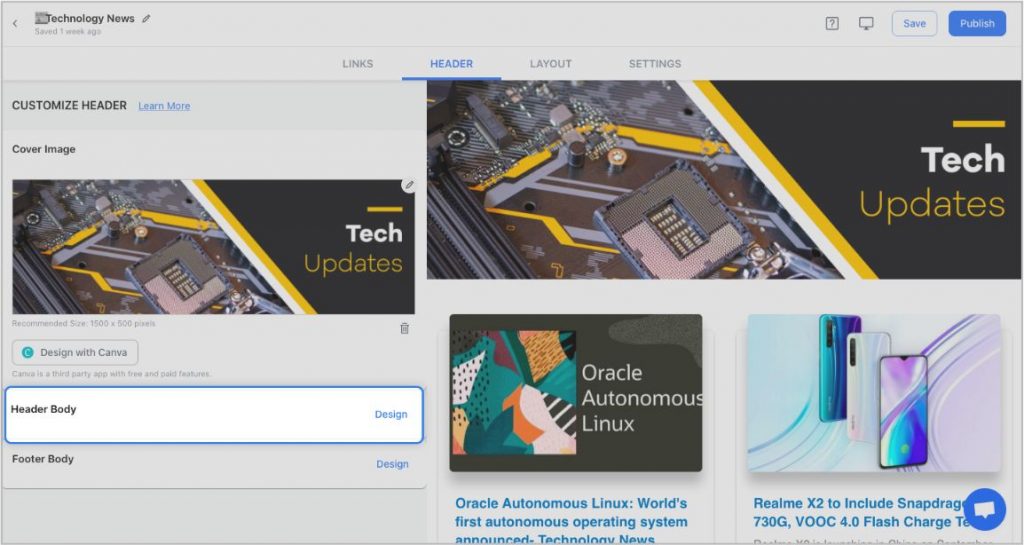
Step 3: Add Header
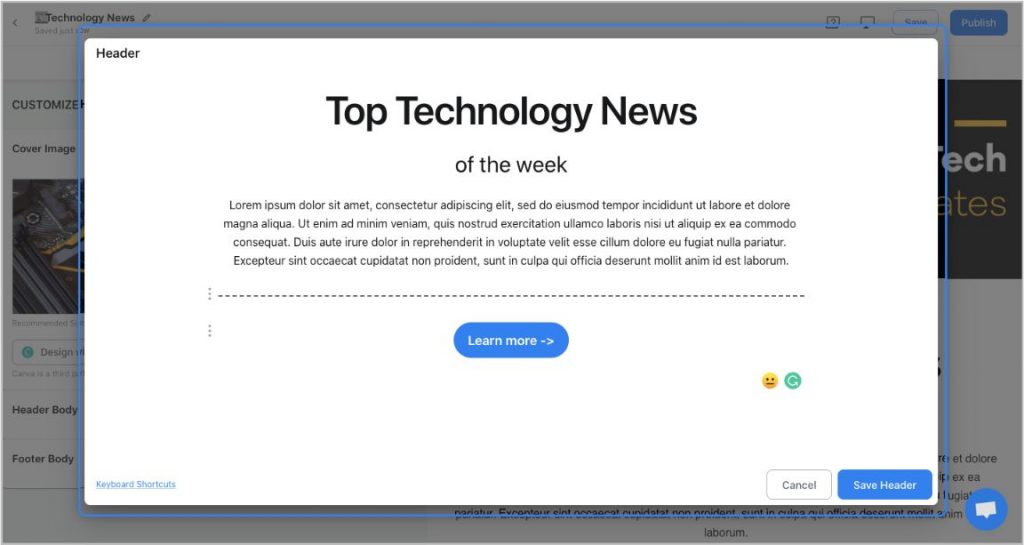
The header is a very important part of an email, so we’ve given you the option of designing your header body the way you want.
You can add images, text, bullet lists, numbered lists, buttons, social icons, and dividers to your header body. What’s more? You can also use elink’s Canva integration and design an eye-catching banner directly in elink.
Step 4: Add Footer
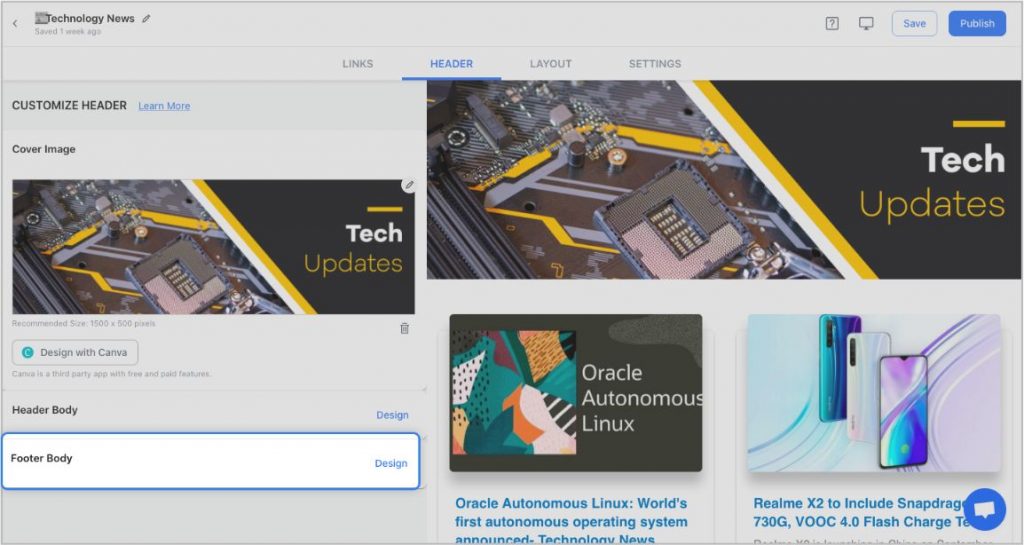
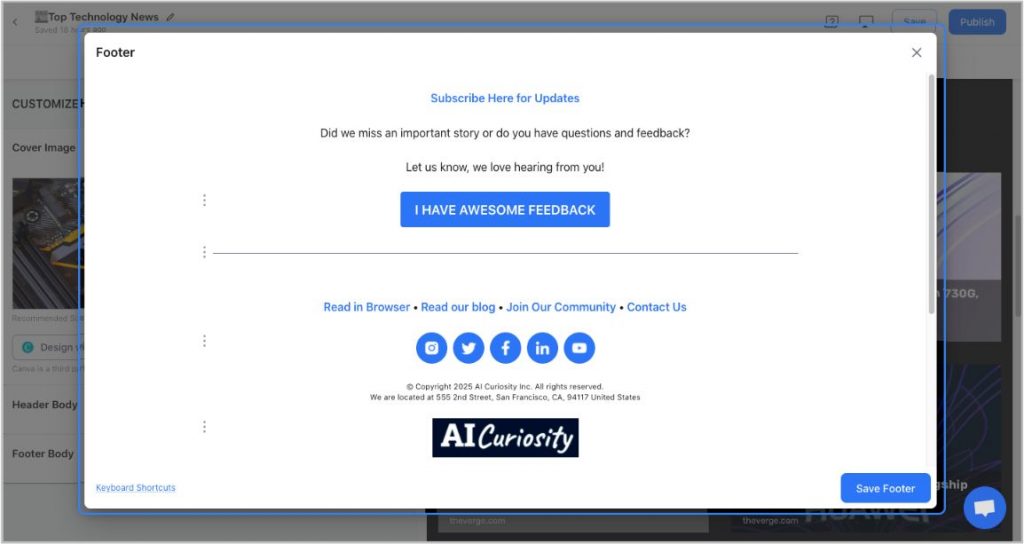
An email footer is a place where the recipients would look for details about your brand. It is a place for transparency, clarity, and good design – exactly what elink provides.
You can add images, text, bullet lists, numbered lists, buttons, social icons, and dividers in your footer. Moreover, you can link the social icons with your own social media accounts in seconds.
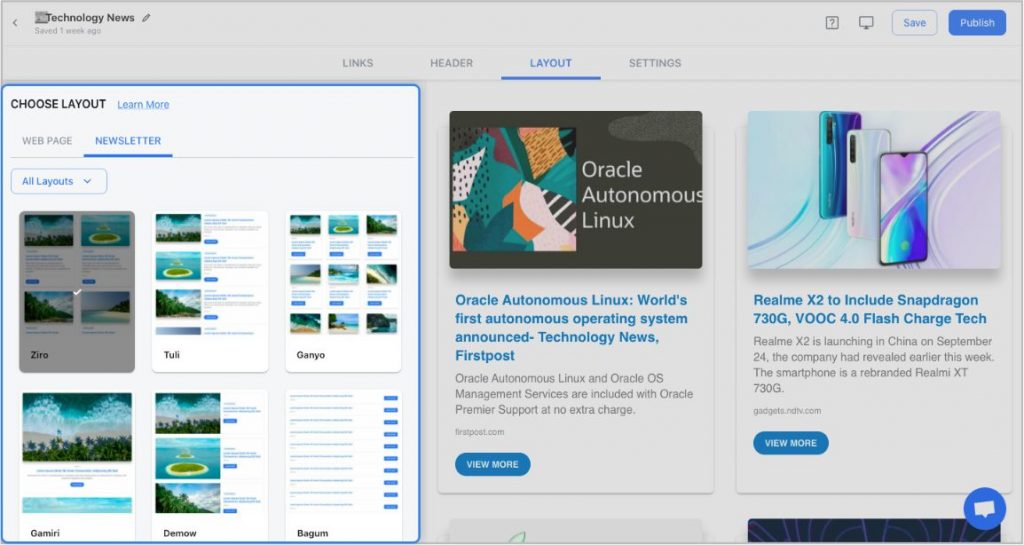
Step 5: Choose a Layout for your links
Just jump right in and don’t worry about wasting valuable time designing the layout of your monthly newsletter. elink has already done all the heavy lifting for you.
You can choose your favorite layout from all the different options with a simple click of a button, and elink will change the formatting of those tiles to your chosen style.
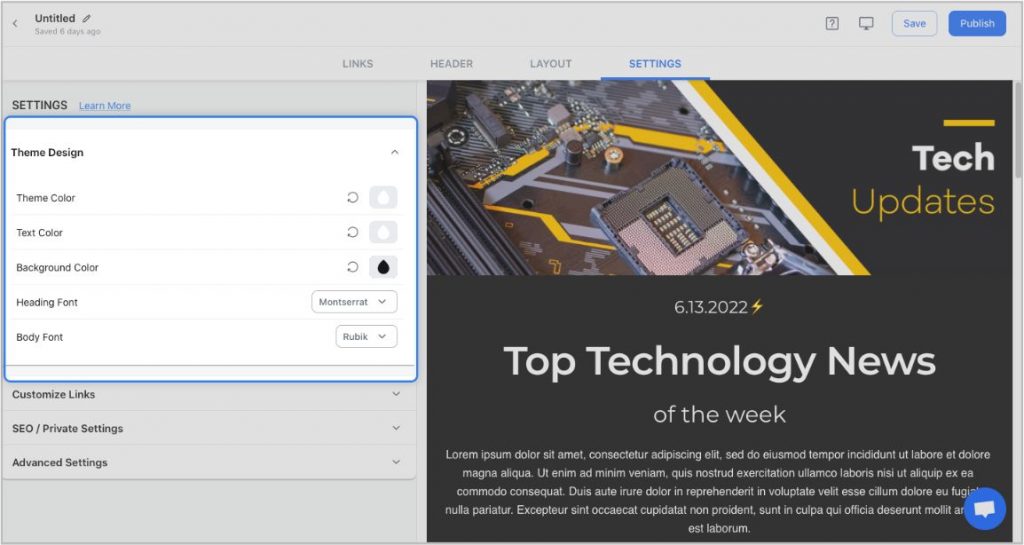
Step 6: Design and customize
You’ll get a perfect combination of colors in our templates. But if you want to change the colors, you can do that too. Apart from that, you can also customize the font styles, button text, and more – in just a few clicks.
One of the most robust features of elink is that you can even add a search bar if you are adding a bunch of links, such as resources, etc.
Step 7: Share Your Newsletter
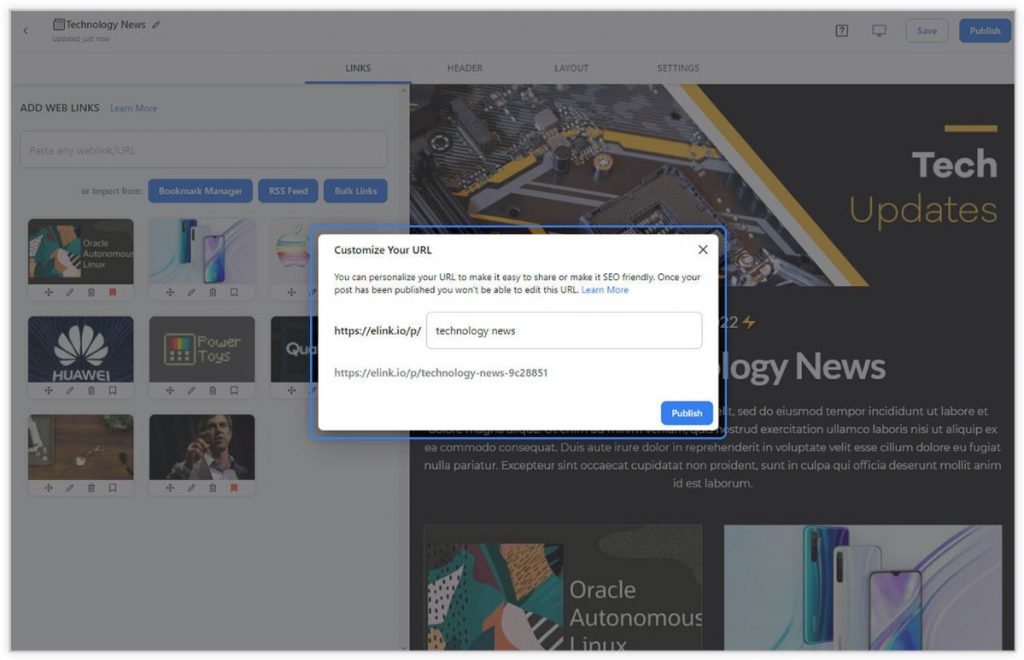
Yay! You’ve now created a stunning monthly newsletter that is ready to be shared with the world. Now, hit the ‘Publish’ button on the far right corner of the screen, and a pop-up will appear, allowing you to customize your content URL.
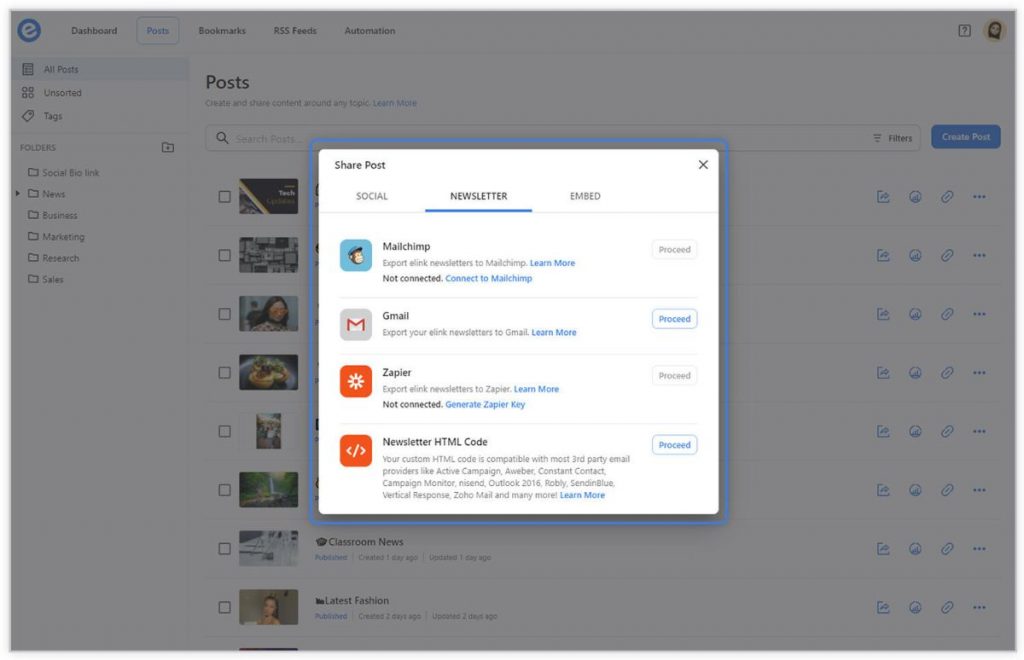
Once you have customized the URL, another pop-up will appear where you need to select the ‘newsletter’ option. From there, you can share your masterpiece via Gmail, Mailchimp, or any other third-party email marketing tools like Get Response, Active Campaign, etc.!
Amazing Announcement Email Templates
If you want your emails to actually get noticed, using announcement email templates can really help. Whether you’re sharing a new product, a company update, or an event, a good announcement mail example makes your message clear and interesting.
Here, you’ll find simple and effective announcement email templates you can use to make your announcements stand out.
Template 1:
Template 2:
Template 3:
Now that you know how to create an announcement email, a few extra tips can make your message even more effective. Small things like tone, timing, and clarity can make a big difference in how people respond to your email.
Here are some simple tips to help you write better email announcements. ✉️
Tips for Creating Better Email Announcements
Even when you follow the basic steps, a few small improvements can make your announcement emails much more effective.
Here are some tips you can follow to make your announcement emails more effective:
- Know your audience and write by keeping their needs in mind.
- Use a clear subject line that immediately explains the announcement.
- Share the main news at the beginning of the email.
- Focus on why the announcement matters to the reader.
- Keep the message short, simple, and easy to scan.
- Use visuals if they help explain the update better.
- Add a clear call-to-action so readers know what to do next.
- Always proofread the email before sending it. ✉️
- When you keep these simple tips in mind, writing announcement emails becomes much easier and far more effective.
Wrapping Up
In this blog, we have helped you understand the meaning and importance of creating an announcement email. We have also introduced you to a nifty tool called ‘elink.io’, which will make your newsletter creation process super smooth!
So, what are you waiting for? Use the step-by-step guide that we have provided to create beautiful announcement newsletters on elink.io and make your announcements exciting and fun!
FAQs
What is the purpose of an announcement email?
An announcement email is used to share important updates with your audience. It can be about a new product, feature, event, or company news. The goal is to inform people clearly and get them interested in what’s new.
How long should an announcement email be?
An announcement email should be short and easy to read. Focus on the key message, explain the benefit, and include a clear call-to-action. Most announcement emails work best when they are concise and to the point.
When should you send announcement emails?
You should send announcement emails when you have something important or exciting to share, such as a product launch, feature update, event, or company milestone. Timing them close to the announcement helps keep the information relevant.
What makes an announcement email effective?
A clear subject line, a simple to-the-point message, and a strong call-to-action makes announcement emails very effective. It should immediately clarify the new launches and illustrate their relevance to the audience. Visuals and a friendly tone can also make the message more engaging.