Email inboxes fill up fast. Whether it’s marketing emails, old receipts, or promotional offers you signed up for a decade ago, your Gmail account can store thousands of emails over the years.
If you’ve ever had to delete a Gmail account because it was full of old emails or spent 5 minutes trying to find a single email buried under a mountain of older ones, then you know how tedious it can be.
The good news is that Gmail makes it especially easy to delete hundreds or even thousands of emails at the same time, and this article will show you how.
Quick answer: To delete emails in bulk from Gmail, open your Gmail and, in the search bar, write what you want to delete or search filters like “older_than:2y” and press Enter. Now, click the Select checkbox at the top-left of the message list and then click the trash icon at the top of the conversation list.
You can also use these Gmail search commands to quickly find and delete emails in bulk:
| If you want to… | Use this Gmail search |
| Delete old emails | older_than:1y |
| Delete unread emails | is:unread |
| Delete promotions | category:promotions |
| Delete large emails | larger:10M |
| Delete emails from one sender | from:example@gmail.com |
| Delete emails before a date | before:2025/01/01 |
Why Mass Delete Emails in Gmail?
The need to delete emails in bulk comes down to one crucial reason: storage. Every Google Account comes with 15 GB of storage, a limit shared between Gmail, Google Drive, and Google Photos. A person’s mailbox can stop receiving and sending messages if the storage capacity reaches its limit. As a result, Gmail users must delete their emails to create space either on their own or by paying for additional storage.
Apart from storage, another essential reason to perform a mass deletion is to keep the mailbox organized. When numerous messages are in the Inbox, searching for a relevant one among them becomes an energy-draining task. In addition, some people opt to delete their emails to prevent personal or sensitive information about their accounts from being accessible to others in the future. Finally, mass deletion of emails that are no longer relevant or useful is the norm to prevent unnecessary mess.
However, prior to deleting any emails in bulk, there is a list of essential questions that one ought to answer first.
Things to Check Before You Delete Your Emails
Mass deleting is fast, but a little caution goes a long way. Before you click that trash icon, run through this short checklist so you don’t lose anything important.
- Decide: archive or delete. Archiving removes an email from your inbox, but retains it in All Mail so you can search for it later. Deleting an email removes it from your inbox and then permanently deletes it from your Gmail account thirty days later.
- Back up anything important. Use Google Takeout to save a copy of emails you might need later, like contracts or tax records.
- Check your labels first. Emails inside a label aren’t automatically deleted when you remove the label. You have to delete the messages themselves.
- Double-check your search filter. A typo in a search operator (like form: instead of from:) can pull up the wrong emails entirely.
- Know the 30-day window. Deleted emails sit in Trash for 30 days before they’re gone permanently, so you have a safety net if you change your mind.
With that checklist done, you’re ready to actually clear out your inbox. Here’s exactly how.
Got suspicious emails in your inbox? Learn how email spoofing works and how to protect yourself from spoofed messages→
How to Mass Delete Emails in Gmail (Step-by-Step Guide)
Nobody has time to delete thousands of emails by hand. Instead, Gmail lets you search, select, and remove messages in bulk using a few simple clicks on desktop.
Step 1: Use Search Filters to Find Emails to Delete
Finding emails to delete can be painful when you have a ton of messages to sort through, but you can make Gmail do the hard work for you by entering a search operator into the search bar. This will bring up a list of emails you want to get rid of, so you can delete them all at once. Here are some search operators to help you find emails to delete:

- Old emails: older_than:1y finds messages more than a year old.
- Unread emails: is:unread shows messages you’ve never opened.
- Promotions: category:promotions rounds up messages Gmail has sorted into the Promotions tab.
- Large emails: larger:10M finds messages taking up the most storage.

Once your search results load, you’re ready to select them all in one move.
Step 2: Select All Matching Emails
By default, Gmail displays and selects up to 50 conversations per page (you can raise this to 100 in Settings), so a single click on the checkbox won’t grab everything. Here’s how to select every match, even if there are thousands:
- Click the small checkbox at the top left of your inbox to select the conversations on the current page.
- A notification appears above the list, such as “All 50 conversations on this page are selected.” Click the link next to it, “Select all conversations that match this search,” to extend the selection to every message in your search, not just the ones on screen.
This second click is what makes bulk cleanup practical, since it lets you act on an entire search result in one go instead of paging through it manually.
Step 3: Click the Trash Icon to Delete in Bulk
With everything selected, click the trash can icon at the top of your inbox. Gmail moves every selected email to Trash in one motion, with no dragging and no repeating.
Your emails aren’t gone yet, though. Gmail holds deleted messages in Trash for 30 days, so you can still recover something you deleted by mistake. If your goal is freeing up storage right away, you’ll need one more step.
Step 4: Empty Your Trash to Free Up Storage
If you have deleted some messages, they will be sent to your Trash folder. However, this will take up space on your Gmail account until the trash is emptied. Follow these simple instructions to empty your trash:
- Open the Trash folder from the left sidebar.
- Click “Empty Trash now” to permanently remove everything inside.
Once Trash is emptied, those messages can’t be recovered. Keep in mind that your Google Account storage number doesn’t always update instantly. It can take up to a few days for large deletions to be reflected in your storage total, even though the emails themselves are already gone.
Step 5: Repeat for Other Categories
To clean up the rest of your inbox, repeat similar steps for other categories, using some of the following search operators:
- Social notifications: category:social clears out updates from social platforms.
- Spam: in:spam removes junk mail sitting in your spam folder.
- Bulky attachments: has:attachment larger:5M finds emails with large files attached.
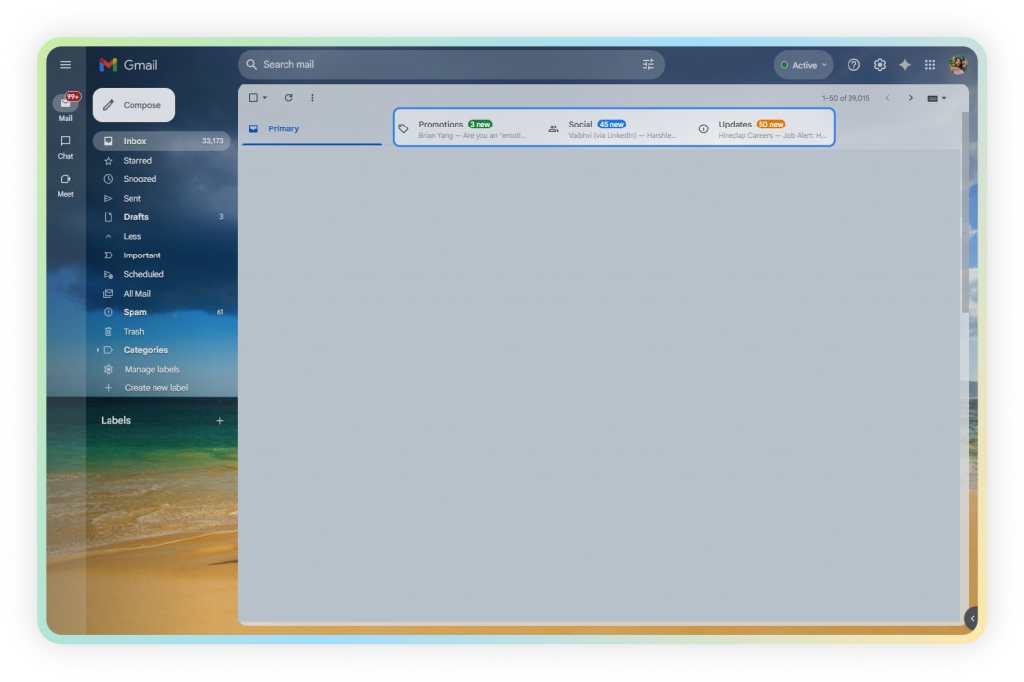
Once your inbox is clean, it helps to know more of the search operators Gmail offers, since a few of them go beyond the basics covered above.
Gmail Search Operators You Should Know
Gmail has many search operators that help you quickly find specific emails. Knowing a few useful ones can make searching and managing your inbox much easier.
| Operator | Purpose | Example |
| older_than: | Messages older than a set time (use d/m/y for days/months/years) | older_than:2y |
| newer_than: | Messages within a recent time window | newer_than:6m |
| before: | Messages sent before a specific date | before:2024/01/01 |
| after: | Messages sent after a specific date | after:2025/01/01 |
| larger: | Messages above a certain size | larger:15M |
| filename: | Messages with an attachment matching a file name or type | filename:pdf |
| category: | Messages sorted into a specific inbox tab | category:promotions |
| label: | Messages under a specific label | label:receipts |
| is:unread | Messages you haven’t opened | is:unread |
| from: | Messages from a specific sender | from:amazon |
| to: | Messages sent to a specific recipient | to:john |
You can also combine operators in a single search for a more precise result. For example, category:promotions older_than:1y narrows results to old marketing email, and has:attachment larger:5M -is:starred finds bulky attachments you haven’t flagged as important. Combining filters like this can save you from running several separate searches.
Once you know how to find exactly what you want, the next decision is whether to archive it or delete it for good.
Done deleting thousands of emails? These email cleaner tools can help prevent the clutter from coming back →
Archive vs. Delete in Gmail: What’s the Difference?
Archiving removes an email from your inbox while keeping it stored and searchable; deleting sends it to Trash, where it’s permanently removed after 30 days. Both actions clear the message out of your inbox view, but they behave differently after that.
| Feature | Archive | Delete |
| Frees up storage | No | Yes, once Trash is emptied |
| Stays searchable | Yes, in “All Mail” | Only during the 30-day Trash window |
| Removed from inbox | Yes | Yes |
| Reversible | Anytime | Only within the 30-day Trash window |
| Best for | Receipts, contracts, records you may need later | Spam, expired promos, true clutter |
A good rule of thumb is that anything that has a possibility of being needed in the future should be archived. This includes most receipts, e-mails regarding contracts, and other important documents. On the other hand, e-mails that are known to be spam, unwanted advertisements, or other similar messages can be deleted. It is important to keep in mind that deleted e-mails can only be recovered within 30 days, while archived messages can be accessed at any time.
Everything so far has been about doing this from a browser on your laptop or desktop. But let’s be honest most of us check email from our phones way more often. So if you’re standing in line somewhere and want to knock out a quick cleanup, here’s how it works on mobile.
How to Mass Delete Emails on Mobile
Mobile cleanup works differently than desktop, since the Gmail app doesn’t offer a true “select all” like the web version does. Here’s what actually works on each platform.
Android
- Open the Gmail app and tap and hold any email to enter selection mode.
- Tap the “Select all” checkbox that appears at the top. By default, this selects up to 50 messages at a time.
- Tap the trash icon to move them to Trash.
- Scroll down and repeat the process to clear the next batch of 50.
You can combine this with a search, like is:unread, to target specific emails instead of your whole inbox.
iPhone
The Gmail app for iPhone uses the same default: tap and hold a message, tap “Select all,” and it selects up to 50 messages at a time, which you then delete and repeat for the next batch. If you use Apple’s built-in Mail app with your Gmail account connected, switching to List View unlocks a true “Select All” option. Tap More, choose List View, tap Select, then Select All, and confirm the trash action to clear everything in that mailbox at once.
For inboxes with thousands of emails, desktop is still faster. Mobile works fine for quick, regular cleanups, but the 50-email cap makes it impractical for a full inbox reset.
Speaking of faster cleanups, Gmail’s newest AI tools are changing how this whole process works.
Let Gmail’s AI Do the Cleanup For You
Google has been rolling Gemini AI features into Gmail, including AI Overviews that summarize long email threads and help you get through your inbox faster. Availability and exact capabilities vary by account type, region, and plan, and continue to change as Google expands the rollout.
In practice, Gemini in Gmail is currently strongest at finding what you’re looking for, surfacing old newsletters, specific senders, or large attachments through a plain-language request, while the actual bulk delete or archive action still has to be carried out with Gmail’s native select-all tools described above. If you see AI-powered search or summary options in your account, they’re worth trying as a shortcut for locating emails; either way, the manual search-and-select method above works the same regardless of which AI features your account has.
AI tools help with one-time cleanups, but the real win is never needing a big cleanup again. Here’s how to make that happen.
Looking beyond inbox cleanup? Discover Gmail plugins that can make everyday email management faster and easier→
Save and Organize Important Links From Your Emails with elink.io
Once your inbox is clean, the real challenge is keeping the useful stuff, like newsletters, articles, links, and resources, from turning into clutter all over again. Deleting junk is only half the job; organizing what you actually want to keep is the other half.
That’s where elink.io comes in. Instead of letting valuable links, newsletter content, and resources pile up in your inbox until you delete them by accident, elink lets you save, curate, and turn them into something useful, like a newsletter, web page, or shareable resource page.
So, if you find useful links buried in your emails, save them to elink.io and keep all your favorite articles, resources, and links organized in one place.
Pro Tips for Managing Gmail Efficiently
A one-time cleanup feels great, but it won’t last without a routine. These are recommended habits, not official Gmail requirements, but many people find they keep an inbox from filling back up.
- Unsubscribe Monthly from newsletters and promotional e-mails every month.
- Delete large attachments first using has:attachment larger:5M to free up the most space, fastest.
- Archive instead of delete for anything you might need later, like receipts or work threads.
- Use labels to organize important emails so they’re easy to find without a full inbox scroll.
- Empty your Trash monthly so deleted emails don’t sit around counting against your storage.
- Check your storage every month in Google One’s Storage Manager to catch buildup early.
Conclusion
You don’t need to clean your Gmail one email at a time. A few simple search commands can help you find years-old emails, unread messages, large files, promotions, or emails from a specific sender and delete them in minutes.
Once you know how to search and select emails in bulk, cleaning your inbox becomes much less of a chore. Use these tricks whenever your inbox starts getting out of hand, and you’ll spend less time scrolling through emails you no longer need.

FAQs
1. Can I delete all my Gmail emails at once?
Yes. Search or leave the search bar blank to see everything, select all conversations, and click the trash icon. Remember to empty Trash afterward for the storage to actually free up.
2. How do I mass delete emails in Gmail on mobile?
The Gmail app selects up to 50 emails at a time on both Android and iPhone, and there’s no full “select all” like on desktop. For large cleanups, use a desktop browser instead.
3. What happens if I accidentally delete an important email?
Deleted emails sit in Trash for 30 days before they’re permanently removed, so you can restore them anytime during that window.
4. Does deleting emails actually free up Google storage?
Yes, but it isn’t instant. Once you empty Trash, it can take up to a few days for your Google Account storage number to fully update.
5. How often should I clean my inbox?
Every few months for a deep clean, plus a quick monthly pass using filters like older_than:1y or category:promotions to stay ahead of buildup.
Editor’s Note: This guide reflects Gmail’s search operators, mobile app behavior, and AI features as documented at the time of publication. Google updates Gmail’s interface and AI features on an ongoing basis, so a button or menu name may shift over time. If something in your account looks different from what’s described here, it’s worth checking Gmail’s own Help Center for the current version of that step.
Further Reads:
How to Build an Email List for Engaging Subscribers?
Benefits of Sending out a Gmail Newsletter