Your YouTube banner is one of the first things visitors notice when they open your channel. It helps introduce your brand, highlight your content, and create a strong first impression before someone watches a single video. Since banners appear differently across TVs, desktops, tablets, and mobile devices, using the correct YouTube banner size is essential.
The recommended YouTube banner size is 2560 × 1440 pixels, with a safe zone of 1546 × 423 pixels for elements such as your logo, channel name, and text. YouTube also recommends keeping the file size under 6 MB to ensure the banner uploads correctly and displays clearly across all supported devices.
In this guide, you’ll learn the correct YouTube banner dimensions, understand how the safe zone works, discover practical design tips, explore useful banner creation tools, avoid common design mistakes, and follow the steps to upload your finished banner to YouTube.
YouTube Banner Size at a Glance
Before you make your channel art, it is helpful to know the recommended YouTube banner size and what you need to upload. The table below shows the dimensions and specifications, so your banner looks good on desktop computers, mobile phones, tablets and TVs.
| Specification of YouTube Banner | Recommended Value |
| Recommended upload size | 2560 × 1440 px |
| Minimum upload size | 2048 × 1152 px |
| Safe area (text & logos) | 1546 × 423 px |
| Maximum file size | 6 MB |
| Aspect ratio | 16:9 |
| Accepted file formats | JPG, PNG, GIF, BMP (no animation or transparency) |
Following these specifications helps your YouTube banner appear sharp and keeps important elements, such as your logo, channel name, and text, visible across different screen sizes.
Although YouTube recommends a single banner size, the same image is displayed differently on each device. Understanding how your YouTube banner appears on desktops, mobile phones, tablets, and TVs helps you place important content where it stays visible across devices.
YouTube Banner Size for Different Devices
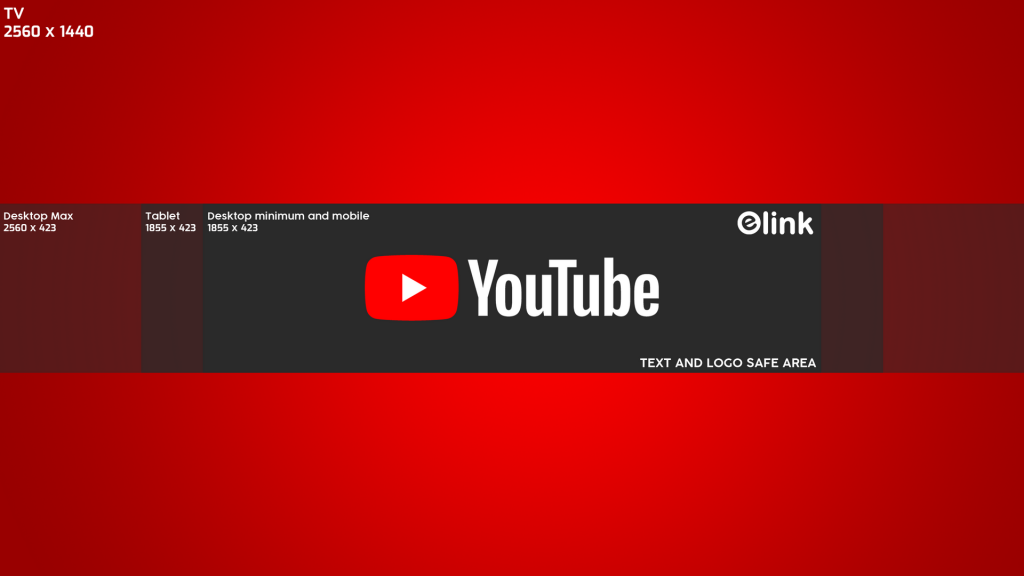
Because your banner is cropped differently depending on the screen it’s viewed on, it helps to know exactly how much of your image is visible on each device.
| Device | Visible Banner Size (approx.) |
| Desktop | 2560 × 423 px |
| Tablet | 1855 × 423 px |
| Mobile | 1546 × 423 px |
| TV | 2560 × 1440 px (full image) |
The 1546 × 423 px safe zone is the common ground across every device, anything inside it will always be visible, no matter where someone is watching from.
Knowing the correct YouTube banner size is only part of the process. To create channel art that supports your brand, it’s helpful to understand what a YouTube banner is, why it matters, and its role in your channel’s overall appearance.
What is a YouTube Banner?
A YouTube banner, also known as channel art, is the large cover image displayed at the top of your YouTube channel. Similar to a Facebook cover photo, it helps introduce your channel and gives visitors an immediate sense of your brand, content, or personality before they watch any videos.
A good YouTube banner includes your channel name and logos. You can also list the days you upload videos and a few words that describe your channel. The YouTube banner is one of the things people see when they visit your channel, so it helps make your channel look professional. It makes your channel easier to recognize.
A YouTube banner is easy to confuse with another image on your channel: the YouTube thumbnail. Both show up on your channel and both matter for how you’re perceived, but they do very different jobs — so it’s worth getting the distinction clear before you start designing either one.
Design every social profile with confidence:
Your Cheat Sheet to an Awesome Facebook Cover Photo & Cover Video →
YouTube Banner vs YouTube Thumbnail
Your YouTube channel has two things: YouTube banners and YouTube thumbnails. They do different jobs. A YouTube banner is like a sign for your channel. It shows people what your channel is about. On the other hand, a YouTube thumbnail is like a poster for one video. It tries to get people to watch that video.
| Aspect | YouTube Banner | YouTube Thumbnail |
| Purpose | Represents your entire channel | Represents a single video |
| Recommended size | 2560 × 1440 px | 1280 × 720 px |
| Aspect ratio | 16:9 (cropped depending on device) | 16:9 |
| File size limit | 6 MB | 2 MB |
| Where it appears | Top of your channel page | Search results, suggested videos, and the video player |
| Update frequency | Occasionally, during branding updates | With every new video upload |
Both banners and YouTube thumbnails are important for your channel. Your YouTube banner helps people know your channel and makes a first impression. Your YouTube thumbnails make people want to watch your videos. If you use them well, your channel will look more professional and consistent. This helps your channel grow. Your banner and YouTube thumbnails work together to improve your channel.
Now that you know how a banner differs from a thumbnail, the next step is making sure your banner itself displays correctly everywhere it appears and that starts with understanding YouTube’s safe zone.
Understanding the YouTube Banner Safe Zone
Using the correct YouTube banner size is only part of the process. To ensure your channel name, logo, and other important details remain visible on every screen, you also need to understand the YouTube banner safe zone. This is the section of the banner that YouTube keeps visible regardless of whether someone is watching on a mobile phone, desktop, tablet, or TV.
Why Does YouTube Crop Banners?
When you upload a YouTube banner, it is 2560 × 1440 pixels. YouTube does not show the whole picture on every device. Instead, it cuts off the sides of the screen and keeps the middle part visible. This way, the banner looks good on all devices without being stretched.
Where Should You Place Your Logo in a Banner?
Place your logo inside the 1546 × 423 px safe zone, preferably near the center. This ensures it remains visible across desktops, tablets, mobile devices, and TVs without being cropped.
Where Should Text Be Placed?
Keep your channel name, upload schedule, tagline, and other important text inside the safe zone as well. Avoid placing text close to the edges of the banner, as those areas may disappear on smaller screens.
What Parts of the Banner Get Cropped?
When you look at the banner on screens, the sides are the first things to get cut off. The full banner is 2560 × 1440 pixels. The sides get cut off on smaller screens. You should use these sides for things that’re not important, like backgrounds or decorations.
Best Practices for the Safe Zone
- Keep logos and text inside the 1546 × 423 px safe area.
- Use the outer edges for background images and visual effects.
- Preview your banner on desktop and mobile before publishing.
- Leave enough spacing around important elements to prevent accidental cropping.
Designing with the YouTube banner safe zone in mind helps your channel look clean and professional while ensuring key branding elements remain visible no matter how viewers access it.
Understanding the safe zone helps you avoid cropped logos and text, but a great YouTube banner also depends on thoughtful design. The next section walks through the steps to create a professional banner that fits the recommended YouTube banner size and effectively represents your channel.
💡 Did You Know? Human attention to visual elements follows predictable eye-scanning patterns, most viewers process a screen in an “F-shaped” or center-weighted pattern, focusing heavily on the top-left and center areas before drifting outward. This is part of why keeping your logo and text centered inside YouTube’s safe zone works so well, it aligns with how people naturally scan a page.
Once you understand how the safe zone works, the next step is putting that knowledge into practice. Creating an effective YouTube banner isn’t just about using the correct dimensions—it also involves arranging your branding, choosing readable text, and designing a layout that stays clear across every device. Here’s a simple step-by-step process to help you build a banner that looks polished from the start.
How to Make a Great YouTube Banner
Making a YouTube banner is easy. You do not need to be a designer. You just need to know the size and have a clear plan. Here are the steps to make a banner that looks good on all devices.
Step 1: Pick the Right Size
The YouTube banner size is 2560 × 1440 pixels. This size looks good on screens like TVs.
Step 2: Design in the Safe Area
The safe area is 1546 × 423 pixels. Put your logo, channel name, and other important things in this area. This way, they will always be visible.
Step 3: Add Your Brand
Use your logo, colors and fonts on your banner. This makes your channel easy to recognize. Make sure it looks the same as your videos and social media.
Step 4: Use Simple Fonts
Choose fonts that are easy to read. Many people watch YouTube on their phones. So avoid fonts that are hard to read on small screens.
Step 5: Save the Banner Right
Save your banner as a JPG or PNG. Keep the file size under 6 MB. Do not make the image too compressed.
Step 6: Check Before Uploading
Use YouTube’s preview tool to check your banner on desktop, mobile and TV. If something important is cut off, move it before uploading.
Making a banner is just the start. You can use a tool to make creating a YouTube banner easier. This way, you can save time and make a professional looking banner.
Best Tools to Create a YouTube Banner
The right tool can make creating a YouTube banner a lot easier for you. This is true whether you are starting from scratch or using a pre-made template. Below are some tools for designing channel art that fits the recommended YouTube banner size and safe zone.
Canva
Canva is a tool for people who are new to design. It offers easy-to-use templates for YouTube banners. The editor is simple to use because it has a drag-and-drop feature. It also has graphics and fonts that you can use. This makes it easy to create channel art that looks professional. You do not need design experience to use Canva.
Adobe Express
Adobe Express is a tool that you can use in your browser. It has templates for YouTube. You can customize these templates in many ways. This makes Adobe Express a choice for people who want their channel art to look nice without having to use complicated design software. You can use Adobe Express to create a great YouTube banner.
Figma
Figma is perfect for people who want to have control over their design. It is especially useful if you are creating different assets for your YouTube channel, such as banner thumbnails, logos, and icons. You can work on all of these things in the project.
Adobe Photoshop
Adobe Photoshop is a tool that professionals use to edit images. It gives you control over your design. You can edit layers, add effects and make precise adjustments. This makes Adobe Photoshop a choice for experienced designers creating custom channel art for their YouTube banners.
VistaCreate
VistaCreate has a lot of templates for YouTube banners that you can customize. It also includes stock images, icons, and design elements you can use. This makes VistaCreate a choice for people who want to make attractive YouTube banners quickly and easily. You can use VistaCreate to create a great banner without spending a lot of time or effort.
Once your banner is ready, the final step is adding it to your channel. Uploading a YouTube banner only takes a few minutes, and YouTube lets you preview how it will appear on different devices before you save the changes.
How to Upload a YouTube Banner
Once you’re happy with your design, uploading it to your channel takes just a few steps:
- Go to the top-right menu and select My Channel.
- Click Add Channel Art if you’re uploading a banner for the first time.
- To replace an existing banner, hover over it until you see the edit icon, then select Edit Channel Art.
- Upload an image from your computer, or click the Gallery tab to choose from YouTube’s photo library.
- You’ll see a preview of how the banner looks across devices, use Adjust the Crop to fine-tune the positioning if needed.
- Click Select, and your new banner is live.
Uploading your banner is straightforward, but a few common mistakes can affect how it looks on different devices. Before you publish your YouTube banner, it’s worth checking for issues that could make your channel appear unprofessional or reduce readability.
Perfect your X (Twitter) profile visuals next:
Ultimate Guide To Your Twitter Header Size and Cover Photo →
Common YouTube Banner Mistakes
- Uploading a low-resolution image that looks blurry or pixelated, especially on TV screens.
- Placing text or logos outside the safe zone, causing them to get cropped on mobile or desktop.
- Ignoring the channel icon and layout overlap, your profile picture and channel details sit over part of the banner, so avoid putting important content directly behind them.
- Using a file that’s too large, which can slow down upload or get rejected for exceeding the 6 MB limit.
- Overcrowding the banner with too much text, making it cluttered and hard to read at a glance.
- Forgetting to preview across devices before publishing, which often means discovering cropping issues only after the banner is live.
Learning what to avoid is just as important as knowing the correct YouTube banner size. These best practices bring everything together, helping you create channel art that looks professional, supports your branding, and displays well on every device.
Best Practices for Designing a YouTube Banner
YouTube has rules for banner size and resolution, so make sure you follow them.
- Keep the words and logos in the safe area of the YouTube banner, which is 1546 × 423 px.
- To make the YouTube banner look really sharp on all devices, design it at 2560 × 1440 px.
- The file size of the YouTube banner should be under 6 MB. It will not work well otherwise.
- The style of the YouTube banner should match your channel icon and the rest of your branding.
- Your YouTube banner should show what your channel is about so people know what to expect.
- It is a good idea to change the YouTube banner every now and then to keep your channel looking up to date.
- Before you publish the YouTube banner, check how it looks on a computer, a phone and a TV.
Following these practices consistently is what turns a decent banner into channel art that looks intentional on every device and matching it to the rest of your branding is one of the practices worth slowing down for.
💡 Did You Know? According to YouTube’s own channel-branding guidance, your profile picture, banner, and watermark are meant to work together as one visual system, not as separate design tasks. Viewers form an impression of your channel in seconds, and a banner that shares the same colors, fonts, and logo placement as the rest of your channel makes that impression consistent, whether someone lands on your channel page, sees your thumbnail in search, or spots your watermark mid-video.
Source: YouTube Help — Manage Your Channel Branding
Knowing the design principles is a great starting point, but seeing how they’re applied in real banners can make those ideas much easier to understand. Before creating your own channel art, it’s worth exploring different design styles, layouts, and branding approaches to discover what best fits your content and audience.
YouTube Banner Inspiration
Rather than staring at a blank canvas, spend 15–20 minutes browsing channels in your own niche and a few outside it. Look specifically for:
- Color palette: do they stick to 2–3 brand colors, or lean on a single bold background?
- Logo and name placement: where does it sit inside the safe zone, and is it centered or off to one side?
- Text on the banner: do they add a tagline, upload schedule, or keep it purely visual?
- Amount of clutter: how much empty space do they leave around the logo and text?
- Consistency with their thumbnails and profile picture: does the banner clearly belong to the same channel?
Save a handful of banners that match the feeling you want your channel to have, then note down what specifically works about each one — the color pairing, the way the logo is framed, the spacing, rather than copying the layout outright. Those notes become the starting brief for your own design.
After gathering ideas and identifying design elements you like, the next step is seeing how successful channels combine those ideas into complete banners. Looking at real-world examples across different niches can help you understand which layouts, branding choices, and visual styles work well in practice.
Create a professional creator profile:
How to Write an Awesome About Me Page with Examples! →
Real-World YouTube Banner Examples for 2026
Every type of YouTube channel has its unique look, but the best YouTube banners all do the same things: they keep important information like the channel name and logo inside the safe zone, they look consistent, and they immediately tell you what the channel is about. Here are some real YouTube channels that you can look at for ideas.
Gaming & Streaming Channels
YouTube banners for gaming channels often have pictures, dark backgrounds and text that is easy to read even on small screens. Many gamers also put their schedule on the banner so you know when they are going to upload or stream.
Real examples:
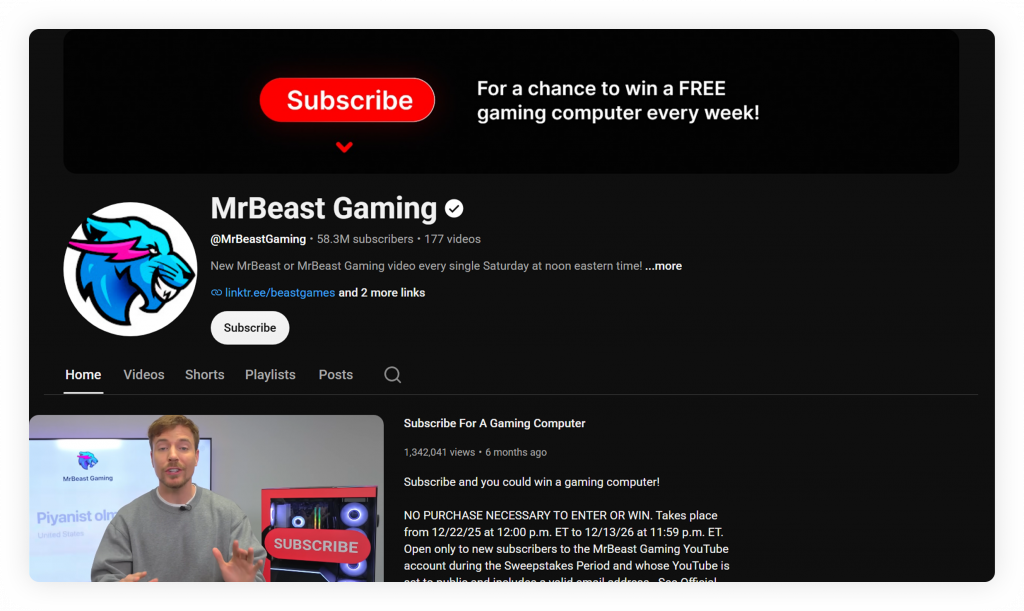
MrBeast Gaming: Uses a logo, clean text and a banner that looks like his video thumbnails.
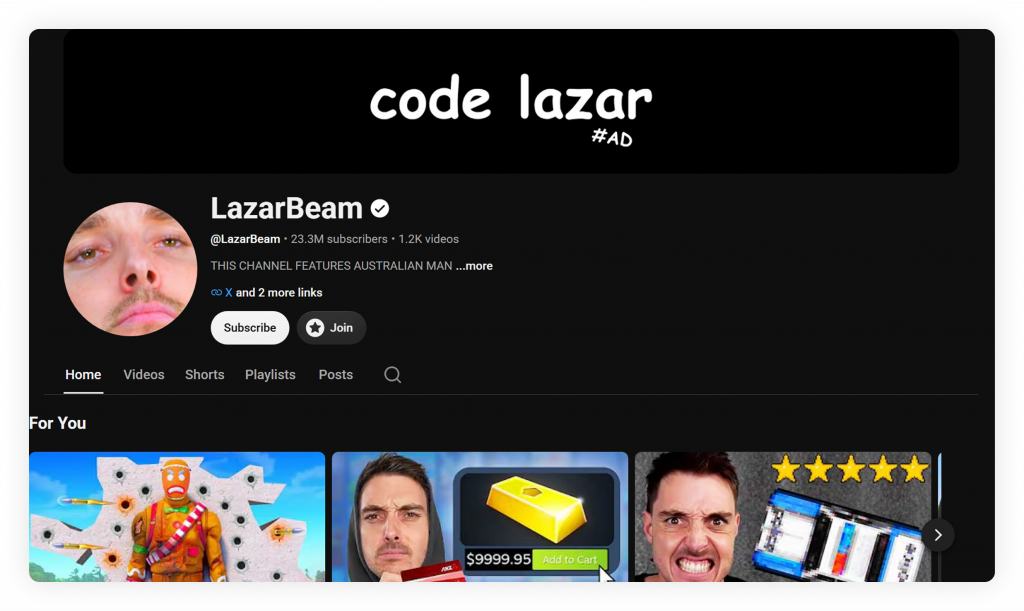
LazarBeam: Uses colors and not too much text so you can recognize the banner right away.
Tech & Education Channels
Channels about technology and education usually have an simple design. Their banners are easy to understand, with backgrounds, logos in the middle and short descriptions that tell you what to expect.
Real examples:
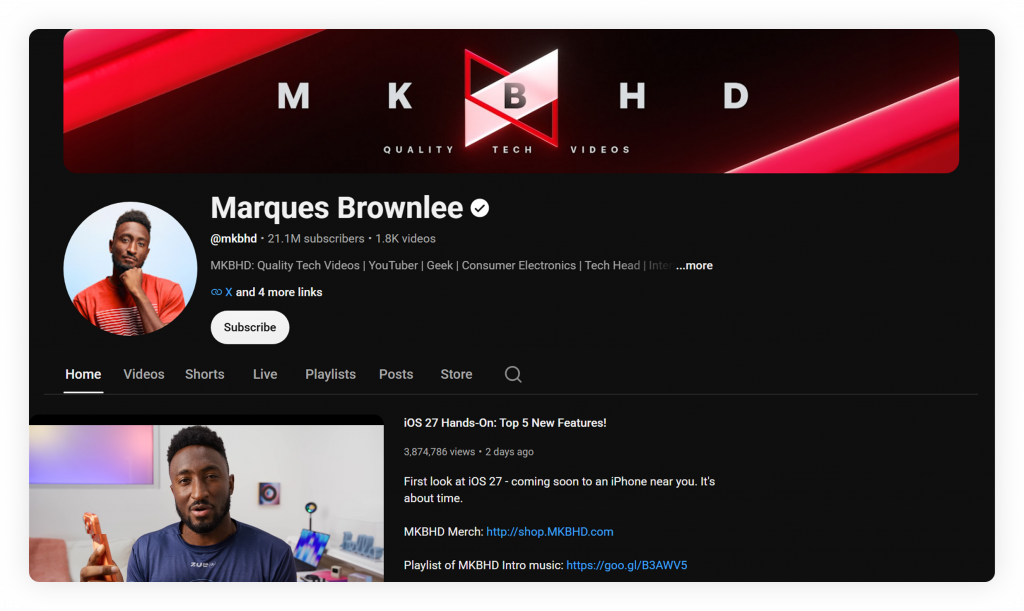
Marques Brownlee (MKBHD): Uses a minimalist banner that reinforces the channel’s premium tech identity.
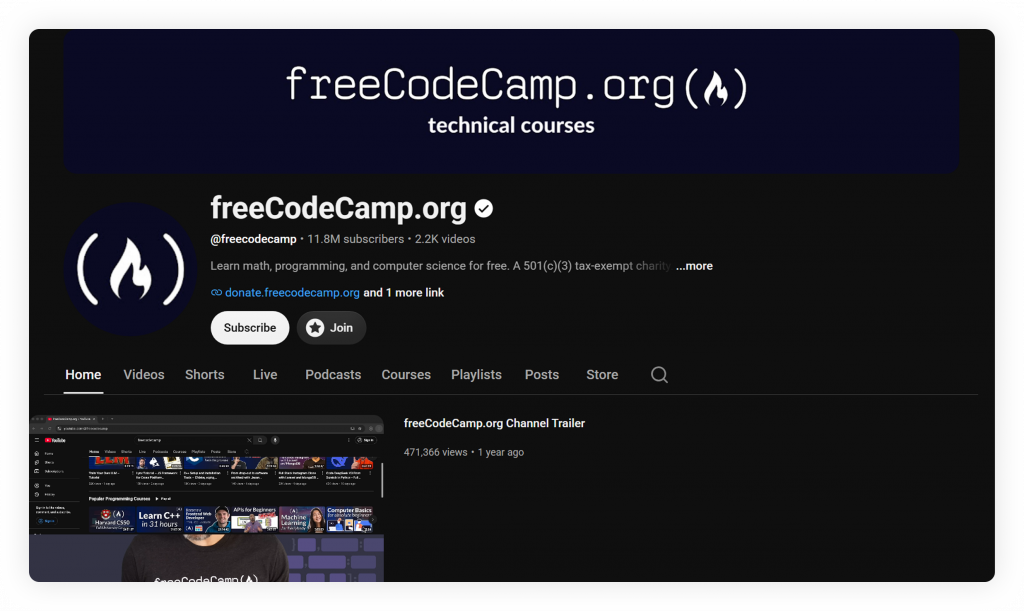
freeCodeCamp.org: Keeps the design simple with strong branding that reflects its educational focus.
Personal Brand and Vlog Channels
Channels about brands often have the creators face on the banner. The banner usually has a picture of the creator, their name and a short description of what they do, with some empty space around it.
Here are some real examples:
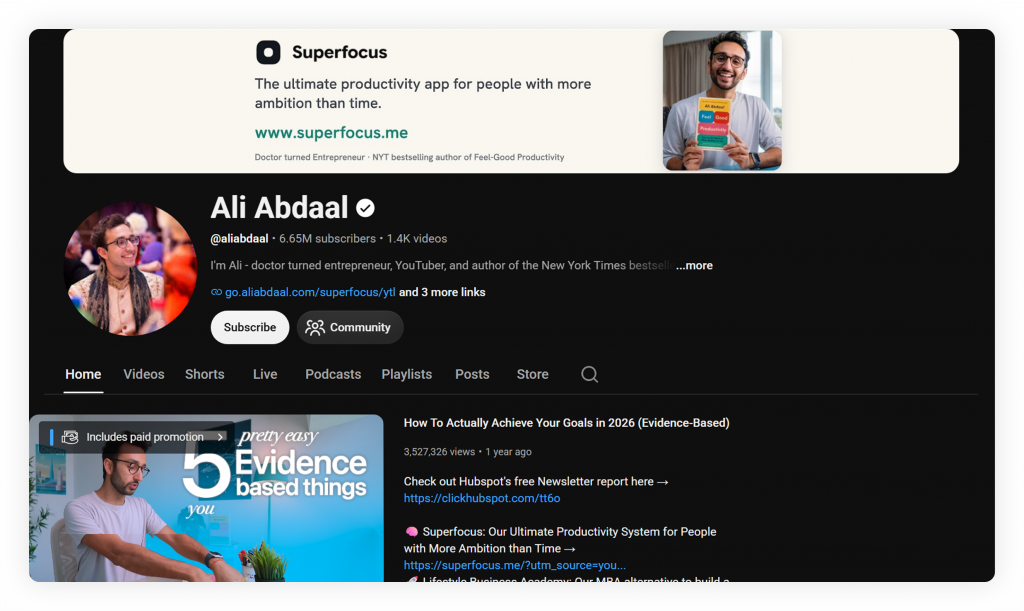
Ali Abdaal: Uses a picture of himself with a logo that matches the rest of his channel.
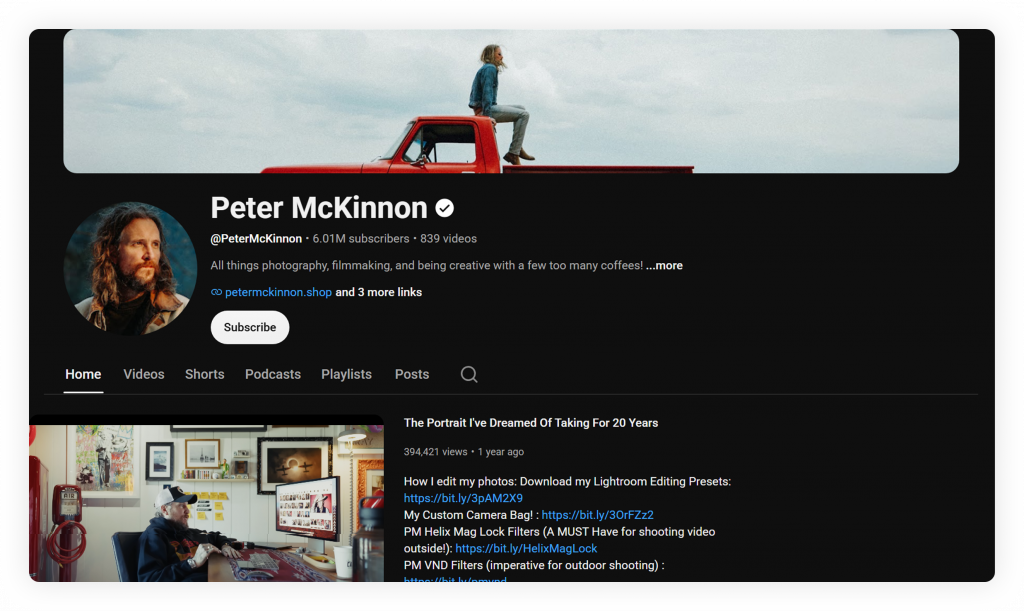
Peter McKinnon: Uses cinematic pictures that show he is into photography and filmmaking.
Faceless Niche Channels
Channels that do not have a person on camera use text, colors and pictures instead of faces. These banners often have backgrounds with logos that are easy to recognize.
Here are some real examples:
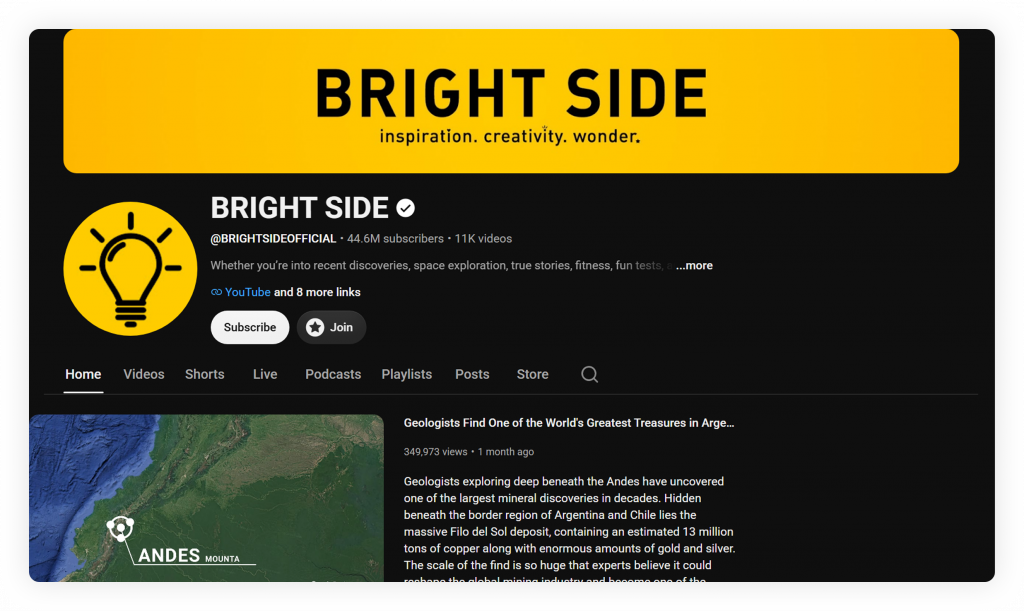
Bright Side: Uses colors and a recognizable logo without showing a person’s face.
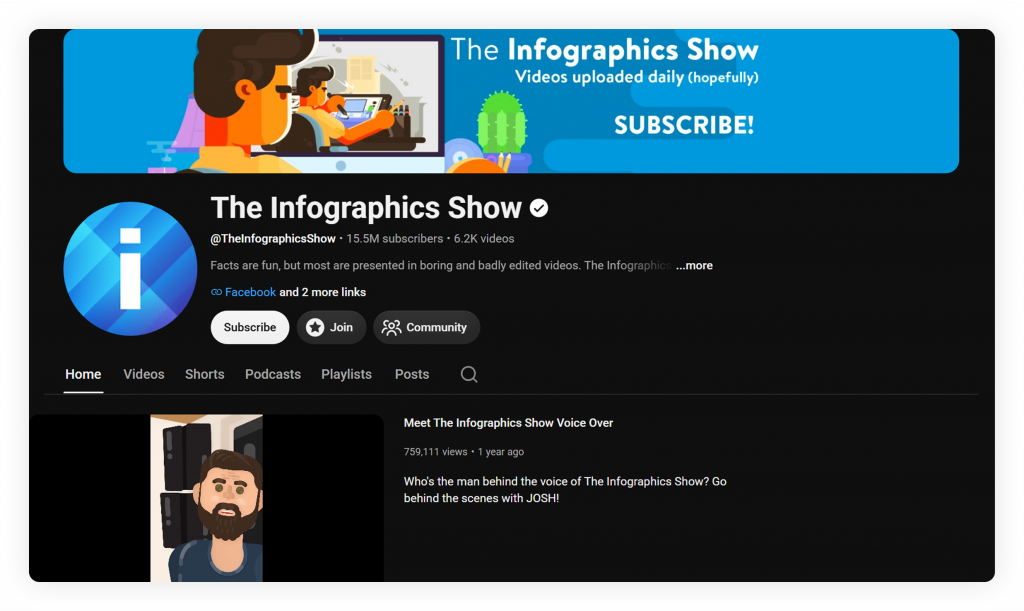
The Infographics Show: Has a banner that looks like it’s animated educational videos.
Business and Brand Channels
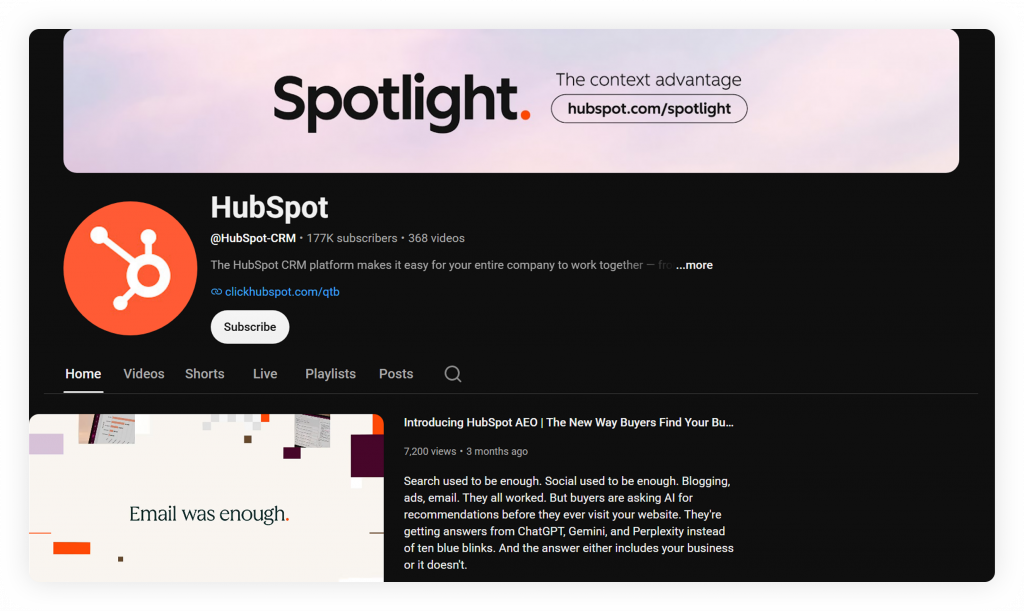
Companies usually keep their banners simple by showing their logo, brand colors and a short description. The goal is to make people remember the brand, not to show personalities.
Here are some real examples:
HubSpot: Uses the branding as the company with a clean and simple design.
Canva: Keeps the banner simple while using colors and text that look like the rest of the brand.
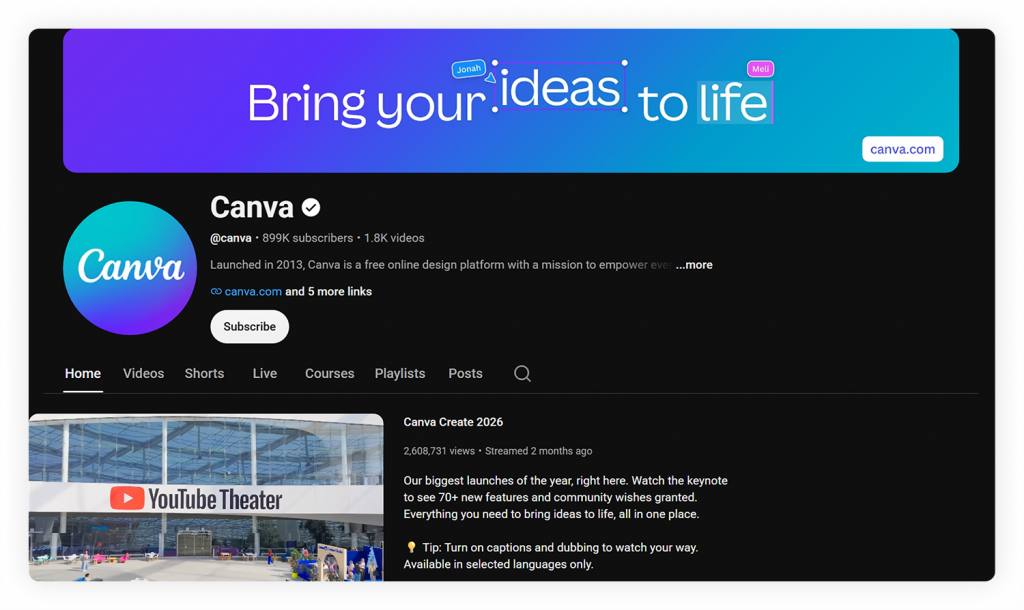
Across all of these examples, one pattern stays the same: the channel name, logo, and important text remain inside YouTube’s safe zone, while colors, fonts, and overall styling stay consistent with the channel’s thumbnails and profile picture. Following this approach helps create a professional first impression, regardless of your niche.
An effective banner helps visitors recognize your brand the moment they land on your channel, but branding doesn’t stop on YouTube. As your audience grows, sharing your content across multiple platforms becomes just as important. The following resource can help you extend your channel’s reach while keeping your presentation consistent beyond YouTube.
Build a stronger brand across every platform:
Social Media Handles: What to Follow for Better Branding →
Bonus Resource: Promote Your Channel Beyond YouTube with elink.io
A great banner gets people to notice your channel, but growing it also means getting your videos in front of people who aren’t already on YouTube. That’s where elink comes in. It’s a content curation tool that helps creators turn their videos, playlists, and favorite resources into shareable newsletters, web pages, and social posts, all without any design or coding skills.
Create a Link-in-Bio Landing Page
If you want to share more than one link from your YouTube profile, elink.io lets you create a single link-in-bio landing page that brings together your videos, playlists, website, products, newsletters, and social profiles in one place. You can update the page anytime without changing the URL, making it an easy way to organize everything your audience needs in one destination.
Turn Your Videos into Newsletters
Just paste a YouTube video or playlist link into elink, and it automatically pulls in the thumbnail, title, and description to create an amazing newsletter. Add a few of your latest uploads together, drop them into one of elink’s newsletter templates, and send it straight to your subscribers in minutes.
Build a Video Resource Page
If you want a single place to showcase your best content — think “Start Here” pages, video libraries, or a curated playlist for a specific topic, elink lets you turn a list of links into a shareable, embeddable web page without touching a line of code.
Share Across Multiple Platforms at Once
Beyond newsletters and pages, elink also lets you share your video content directly to social media, so a single upload effort can drive traffic to your channel from email, your website, and social platforms simultaneously.
Why It’s Useful for YouTube Creators
For creators who already put effort into optimizing their banner, thumbnails, and video SEO, elink is a natural next step, it helps you extend that same polished, on-brand presentation to every other channel you use to promote your videos.

Conclusion
The YouTube banner size is really important for making your channel look good. You should start with the size YouTube recommends, which is 2560 × 1440 px. Make sure your logo and text fit within the 1546 × 423 px area. Also, do not make your file too big; it should be under 6 MB. If you do this, your banner will look good on all kinds of devices, like TVs, computers, tablets, and phones.
A good YouTube banner is not just something that fills the top of your channel. It helps people understand your brand, makes a first impression, and makes your videos look more professional. If you get the size right, design it carefully and check it once before you put it up, you can make a banner that looks really sharp and always looks the same on every device. The YouTube banner is a part of your channel, and it should look good, so take your time and make it right.
FAQs
What is the ideal YouTube banner size?
YouTube recommends uploading a banner at 2560 × 1440 px for the best results across all devices.
What happens if my banner is smaller than the recommended size?
YouTube requires a minimum of 2048 × 1152 px. Anything smaller will be rejected or stretched, which can hurt image quality.
What is the YouTube banner safe zone?
It’s the central 1546 × 423 px area of your banner that stays visible on every device, regardless of cropping.
What file formats does YouTube accept for banners?
YouTube accepts JPG, PNG, and BMP files. GIFs are supported but won’t animate.
Can I use a banner without any text or logo?
Yes, a purely visual banner is fine, but adding your logo or tagline within the safe zone helps with brand recognition.
How often should I update my YouTube banner?
There’s no fixed rule, but refreshing it during rebrands, seasonal campaigns, or major channel milestones keeps your channel looking current.
Editor’s Note: This guide’s specifications (2560 × 1440 px, 1546 × 423 px safe zone, 6 MB max) were verified by cross-checking YouTube’s own Channel Banner & Profile Picture guidance on the YouTube Help Center.
Further Reads:
- Top 10 Best YouTube to MP3 Converters Out There!
- 31 Best YouTube Music Channels for Music Lovers!
- 3 Reasons Why Visual Content Marketing Is Better Than Boring Text
- The Best Art YouTube Channels to Follow Right Now