If you’ve ever felt overwhelmed trying to create the perfect Constant Contact newsletter, you’re not alone. Designing beautiful, effective newsletters can eat up hours each week, especially if you’re juggling images, layouts, alt tags, and formatting to make sure everything looks good on all devices.
It’s not surprising that one of the biggest complaints we hear from marketers is the sheer amount of time it takes to create one perfect email newsletter!
But the best part is, you don’t have to spend hours perfecting your newsletters to get results. By using powerful tools like elink.io, you can cut your design time drastically and focus more on the content that matters to your audience.
In this post, you’ll discover a step-by-step guide to creating your next newsletter faster than ever. Before we jump into the step-by-step guide, let’s take a moment to understand the Constant Contact platform.
What is Constant Contact?
Constant Contact is an email marketing platform that helps businesses and marketers create, send, and manage email campaigns easily. From newsletters and promotional emails to event invitations and automated sequences, it provides all the tools needed to reach and engage your audience effectively.
With its drag-and-drop editor, pre-designed templates, and analytics dashboard, Constant Contact makes designing professional emails simple even for those without a design or coding background. You can also segment your audience, schedule emails, and track results, ensuring your campaigns are targeted and effective.
In short, Constant Contact is a one-stop solution for building email campaigns that connect with your audience and drive results.
Now that you know what Constant Contact is and what it can do, let’s look at a simple way to save time and create newsletters faster without compromising on design or quality.
Time-Saving Trick for Designing Constant Contact Email Newsletters
Well, if you use Constant Contact or any email marketing service, we’re about to make it incredibly easy for you to just focus on your email newsletter copy and generate a modern, responsive email newsletter in 5 minutes with elink.io!
Elink.iois a content curation platform designed to help marketers, teams, and businesses quickly turn web content into polished, professional-looking newsletters, web pages, or social media content. All you have to do is enter web links of content you want users to engage with, and elink.io does all the heavy lifting.

The platform offers over 50 pre-built templates, so you don’t need to think about the design aspect. Moreover, elink has a robust editor, using which you can add your own images, text, bullet lists, numbered lists, buttons, social icons, and dividers in your header and footer. What could be better than that?
YES, it’s that easy to create a modern and responsive newsletter. Now, let’s see how you can create a Constant Contact newsletter with elink.io.
Read More: From automation to analytics, discover which newsletter tools can truly level-up your marketing.
How to Create a Constant Contact Newsletter on elink.io?
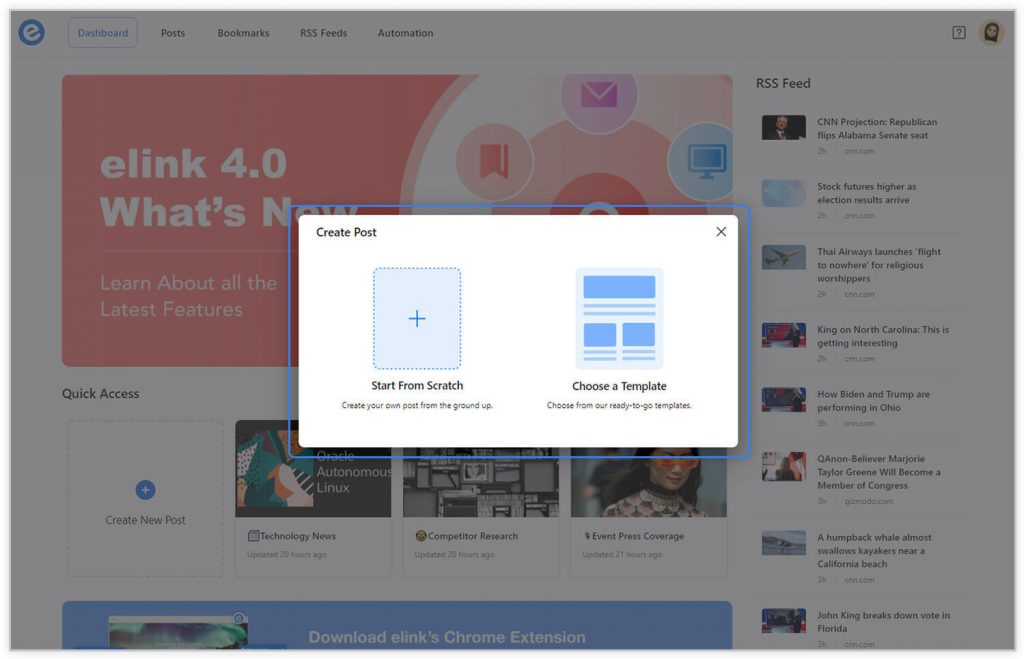
Step 1: Choose a Newsletter Template
The coolest thing about elink.io is that you don’t have to worry about all the tricky design rules. With elink’s stunning newsletter templates, you’re already way ahead when it comes to designing.
Now, here’s what you need to do: choose a template and customize it the way you want. We’ve quite a splendid collection to choose from, so take your time to find the one that fits your needs the best.
By the way, you can also create a newsletter from scratch. It’s totally up to you.
Step 2: Add Links to the Newsletter
Here comes the fun part. You can add links to the content (articles, videos, products, etc.) that you want to show up in your Constant Contact newsletter.
elink is so robust that it will automatically generate an image, a title, and a short description with each link. Of course, you can modify and customize any of this information if you want.
elink is also an RSS reader and a bookmark manager, so you can quickly select your preselected links directly from the link library or the RSS feeds, or enter them manually.

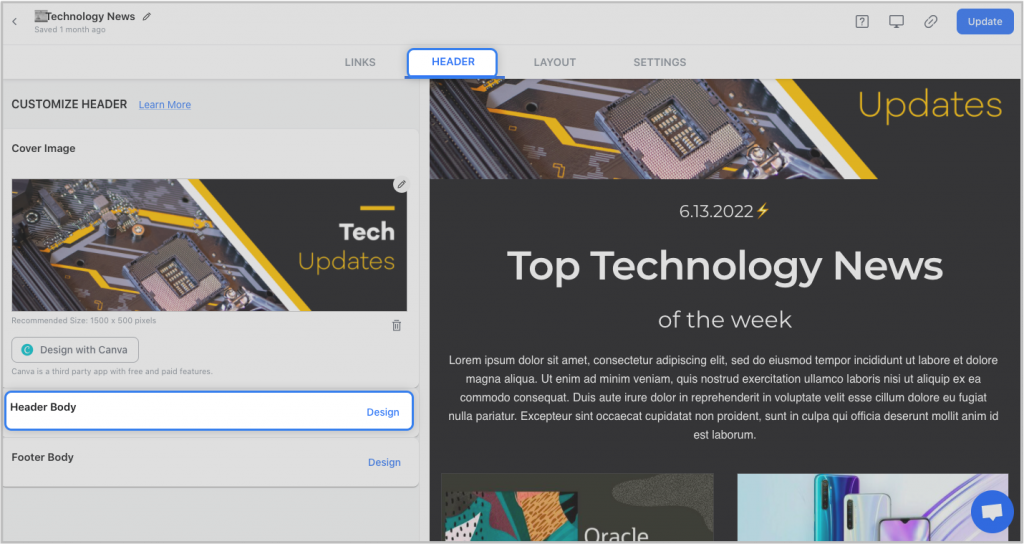
Step 3: Add Header
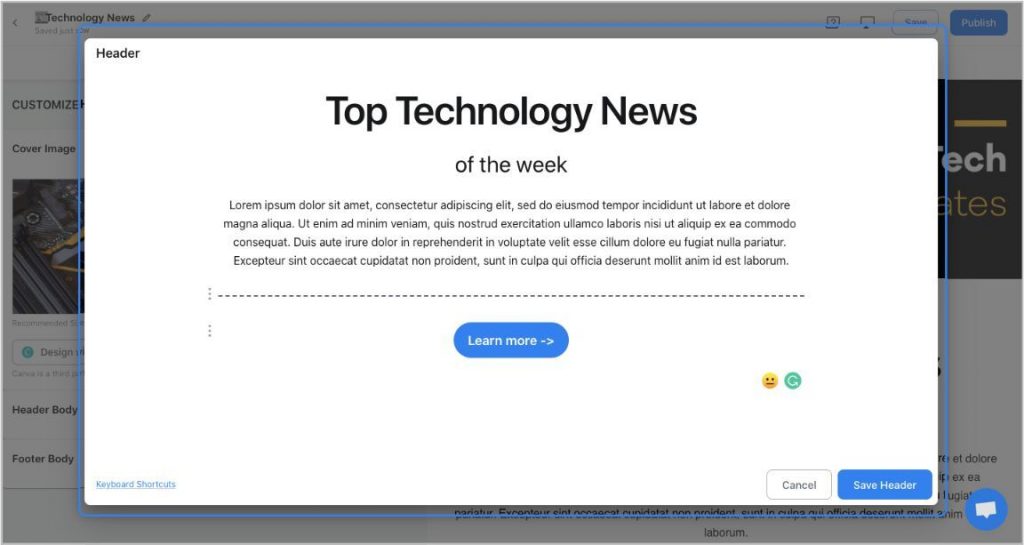
We know that a compelling email header design decides whether the reader will read your entire newsletter or bail on it. That’s why we’ve given you the option of designing your header body the way you want.
You can add images, text, bullet lists, numbered lists, buttons, social icons, and dividers in your header and body. elink even lets you choose from over 6 font sizes for your header and body.
What’s more? You can also use elink’s Canva integration and design an eye-catching banner directly in elink.
Step 4: Add Footer
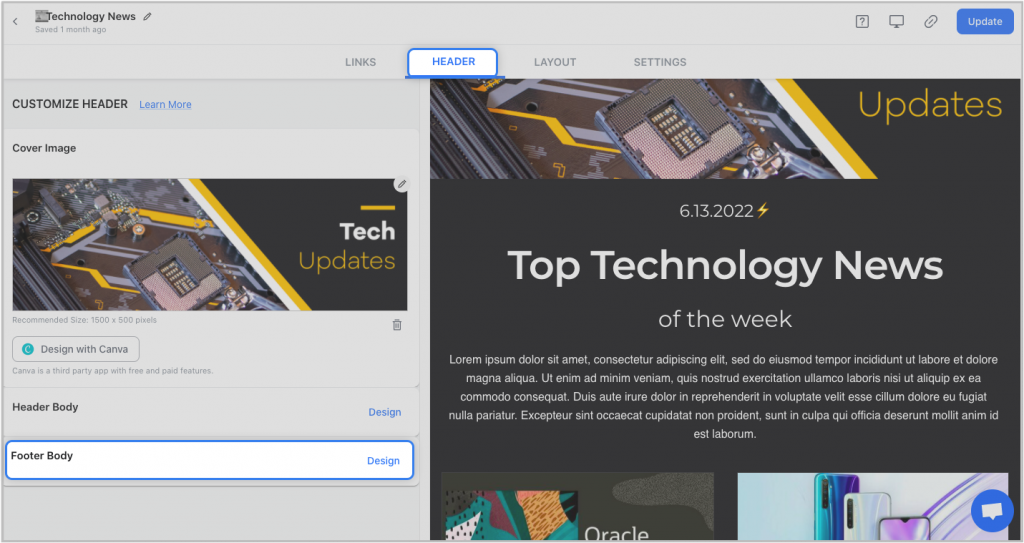
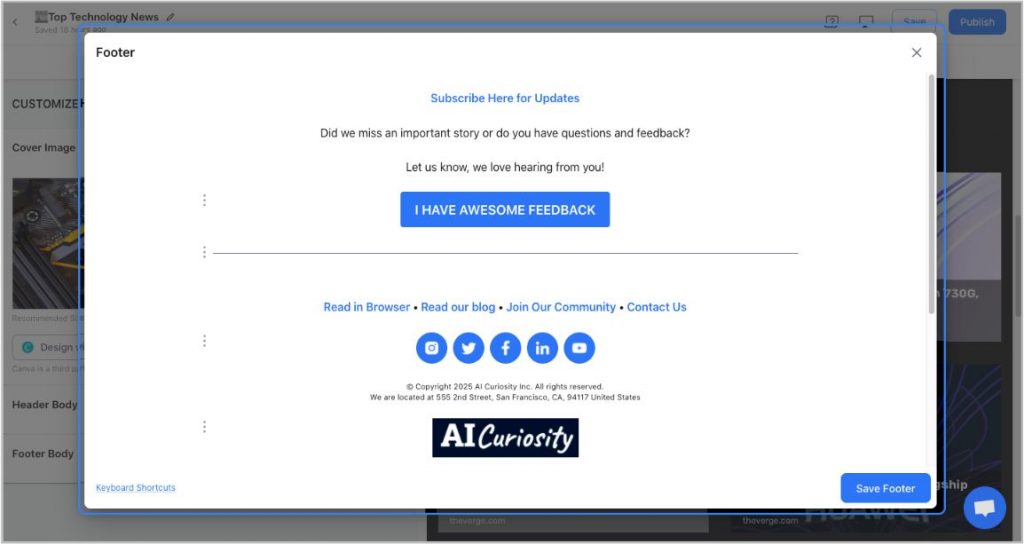
An email footer is a place where the recipients would look for details about your brand. It is a place for transparency, clarity, and good design – exactly what elink provides.
You can add images, text, bullet lists, numbered lists, buttons, social icons, and dividers in your footer. Moreover, you can link the social icons with your own social media accounts in seconds.
Pro Tip: Create multiple elink templates for different newsletter themes so you can publish to Constant Contact in just one click.
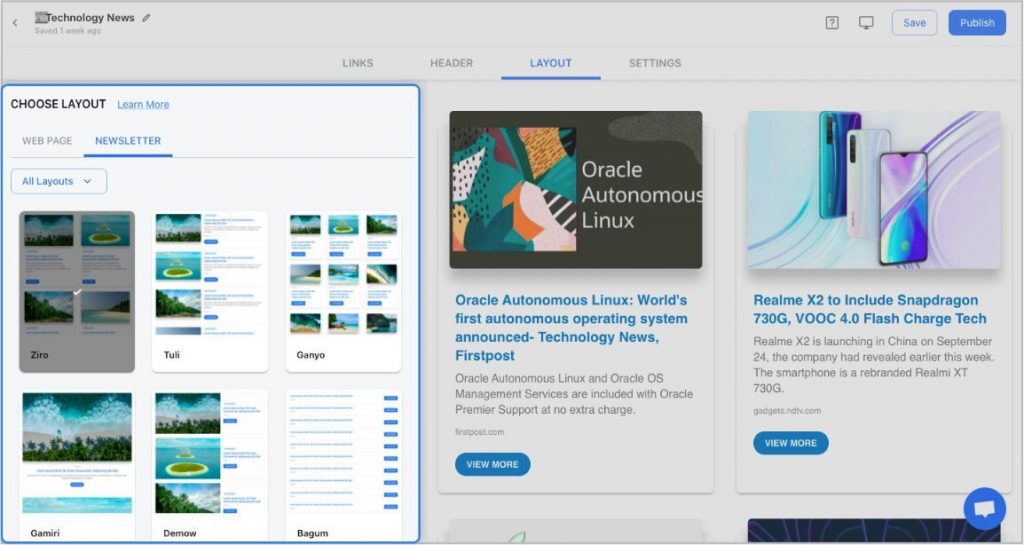
Step 5: Choose a Layout for your links:
Just jump right in and don’t worry about wasting valuable time designing the layout of your Constant Contact newsletter. elink has already done all the heavy lifting for you. You can choose your favorite layout from all the different options with a simple click of a button, and elink will change the formatting of those tiles to your chosen style.
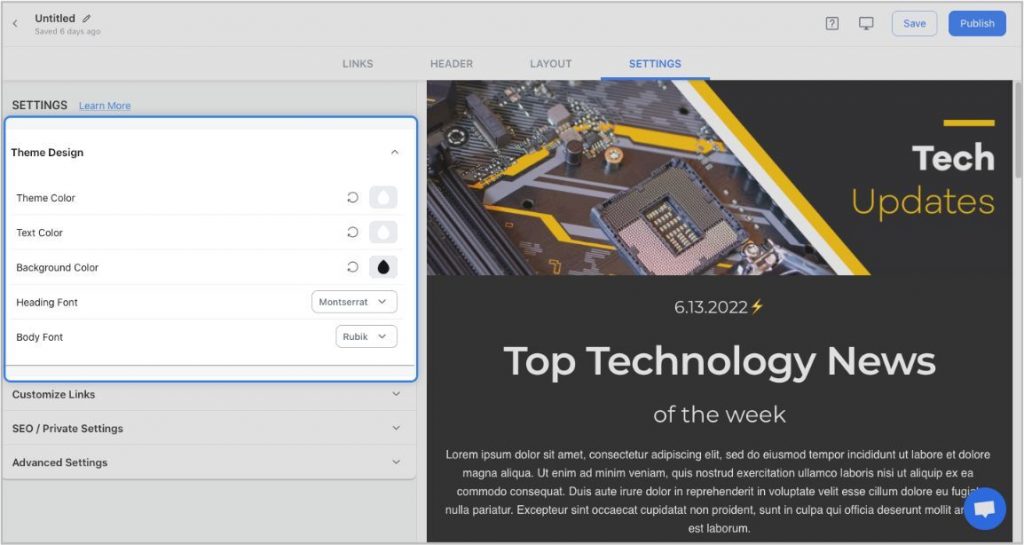
Step 6: Design and Customize
You’ll get a perfect combination of colors in our templates. But if you want to change the colors, you can do that too. Apart from that, you can also customize the font styles, button text, and more – in just a few clicks.
One of the most robust features of elink is that you can even add a search bar if you are adding a bunch of links, such as resources, etc.
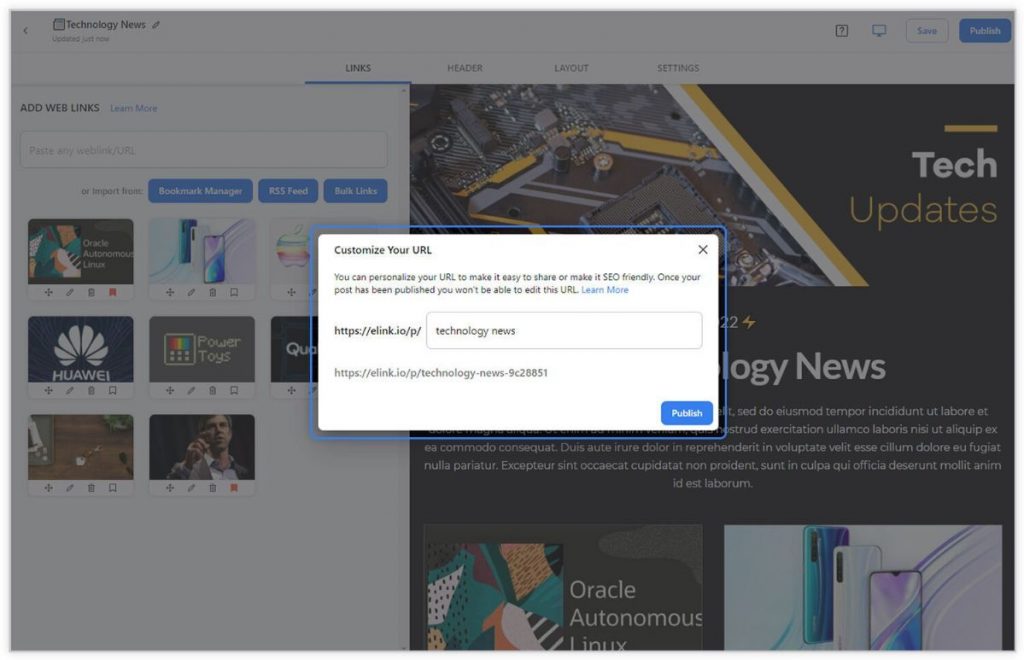
Step 7: Share Your Newsletter
Yay! You’ve now created a stunning Constant Contact newsletter that is ready to be shared with the world. Now, hit the ‘Publish’ button on the far right corner of the screen, and a pop-up will appear, allowing you to customize your content URL.
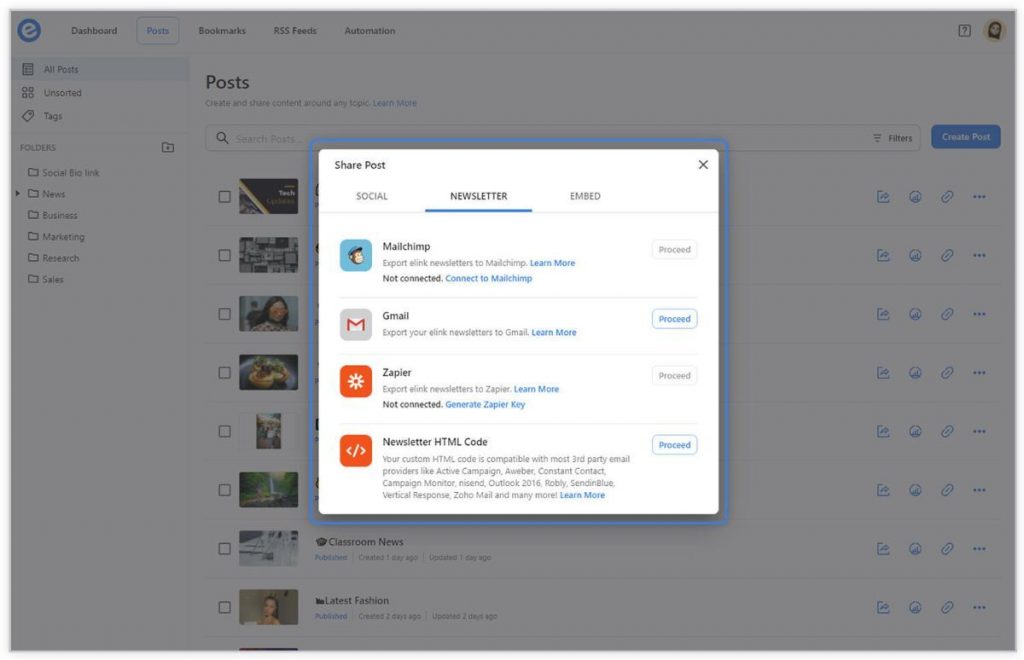
Once you have customized the URL, another pop-up will appear where you need to select the ‘newsletter’ option. From there, you can share your masterpiece via Gmail, Mailchimp, or any other third-party email marketing tools like Get Response, Mailchimp, etc.!
Step 8: Export Your Elink Newsletter into Constant Contact
After creating your newsletter on elink.io, exporting it to Constant Contact is simple. Here’s how you do it:
Part 1: Get the HTML Code from elink.io
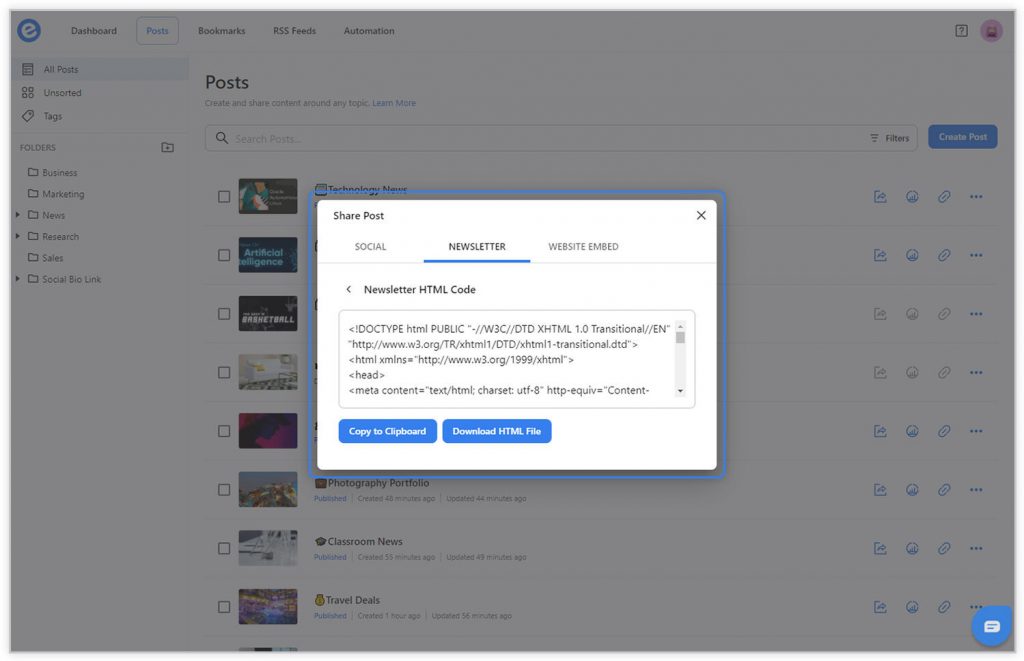
Click the Share icon. In the pop-up, you need to select the “Newsletter” tab. Then, click Proceed to move to the HTML export option. On the next screen, click Copy to Clipboard to copy the full HTML code of your newsletter.
Part 2: Paste the Code into Constant Contact
1. Log in to Constant Contact and choose Create an email.

2. When asked for a template, select the Custom Code option.

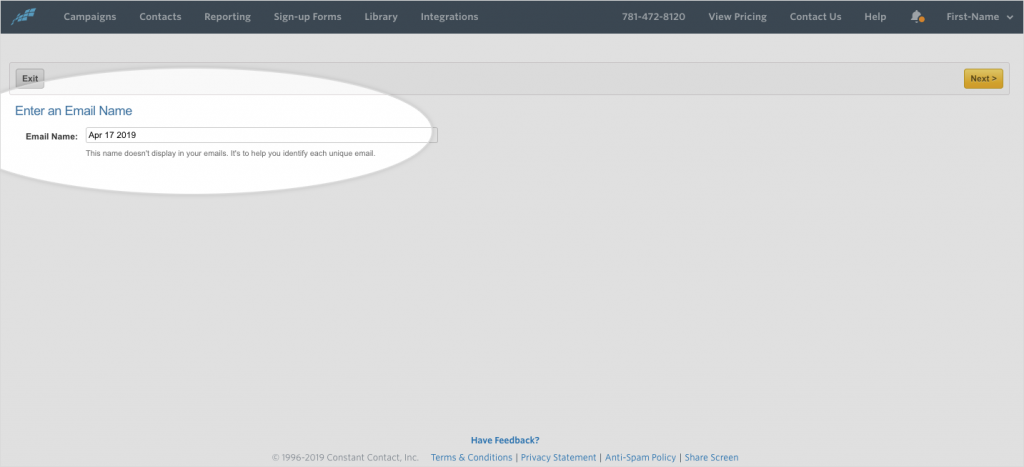
3. Enter your email and proceed to the next step.
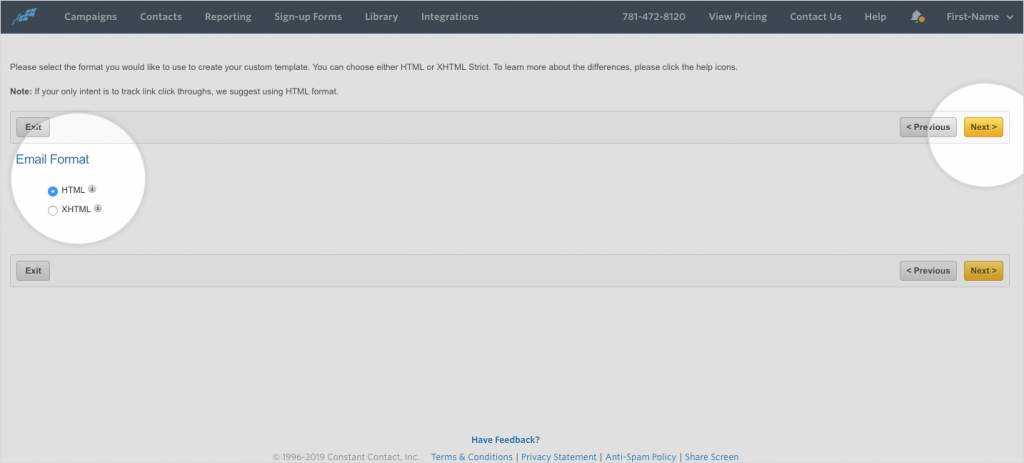
4. Select HTML as email format and click ‘Next.’
5. In the email builder, open the Advanced Editor on the left menu.
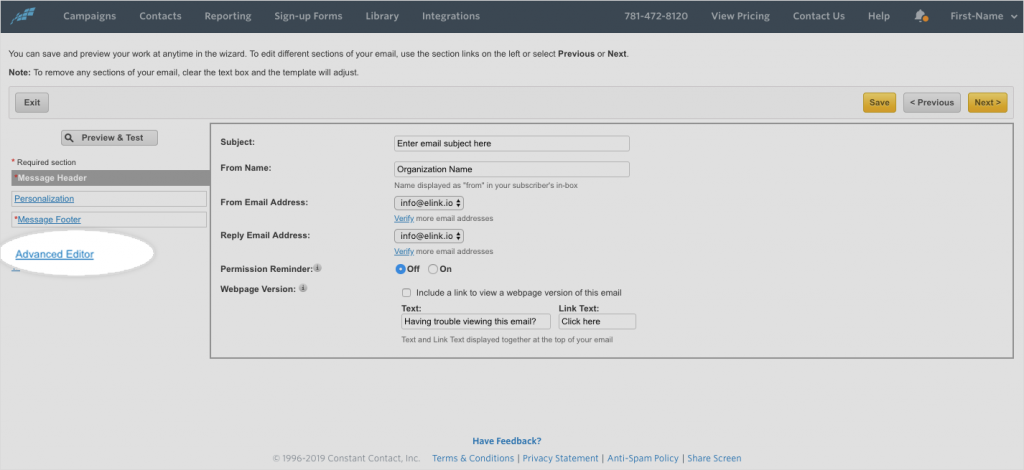
6. Paste the HTML code you copied from elink.io.
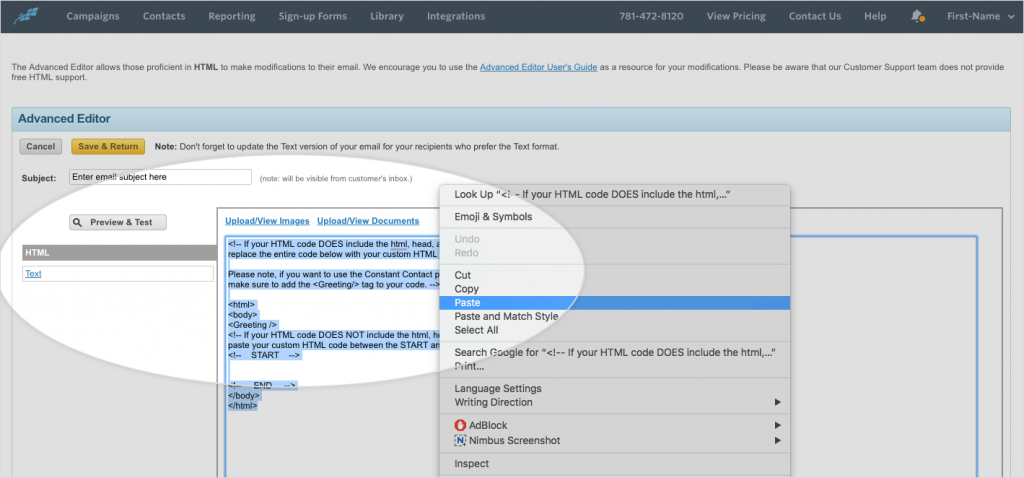
7. Use Preview and Test to check how your newsletter appears. Ensure everything looks good before sending.
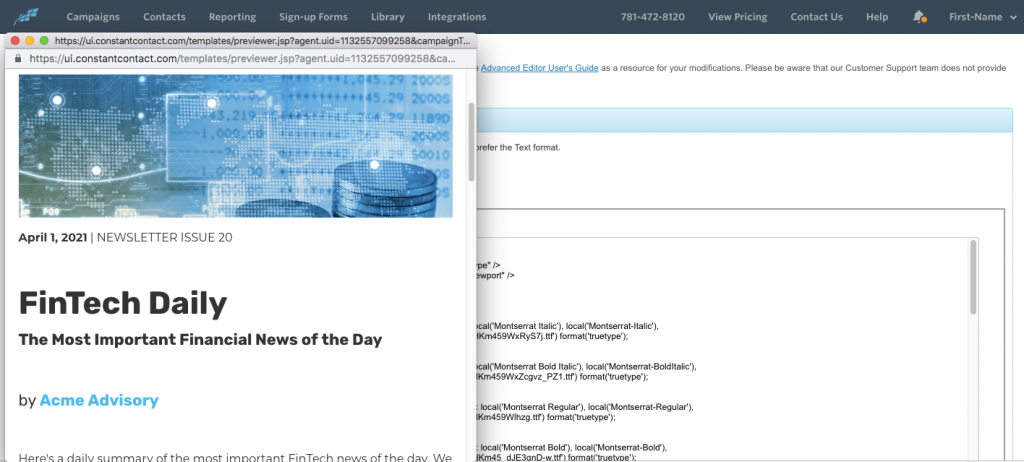
And boom! You’ve got a stunning newsletter ready to send!
Check out this quick video tutorial to see the process in action:
Read More: HTML Newsletters: How to Create them Without Any Coding?
Here is a quick video tutorial:
PS: If you don’t use Constant Contact, you can also use Gmail, MailChimp, Active Campaign, or any third-party email marketing service to send out a visually appealing newsletter with the help of elink.io!
Wrapping Up!
Creating standout Constant Contact newsletters doesn’t have to eat up your day. With ready-made templates from Constant Contact or the customizable options in elink.io, you can focus on your content while getting a clean, professional, and engaging design in minutes.
Keep your newsletters focused on a few key topics, use images to reinforce your message, and include clear calls-to-action that guide your readers. Stick to your brand style and refresh your templates regularly to keep things lively.
So start creating, experiment with templates, and watch your email marketing efforts thrive!
FAQ’s
1. How do I create a newsletter in Constant Contact?
Simply sign in to your Constant Contact account, go to the Email tab, choose a template that fits your needs, customize it with your content and branding, then send or schedule your newsletter. Templates make it easy to get started, even if you’re new.
2. Can I design my own email newsletter in Constant Contact?
Yes! Constant Contact offers a drag-and-drop editor where you can create a newsletter from scratch or modify existing templates to fully match your brand style, images, and messaging.
3. Can I automate newsletter sending in Constant Contact?
Absolutely. Constant Contact supports automation tools that allow you to schedule newsletters and send triggered emails based on the behavior of users.
4. What’s the difference between Constant Contact newsletters and campaigns?
Newsletters are one part of an email campaign. A campaign can also include promotional emails, event invitations, and automated messages.
Keep Reading & Learning 📚
- How to Send a Newsletter with Campaign Monitor in 5 minutes?
- Gmail Newsletters: How to Create Them!
- 11 Constant Contact Alternatives for Better Email Marketing Automation!
- How to Save Time On Your Next Mailerlite Newsletter?
- How to Send An Active Campaign Newsletter in Half the Time?